
Build a mobile application that can verify an mDoc from an Apple Wallet installed on the same device
Overview
This guide demonstrates how to use the mDocs Verifier Mobile SDK to build a mobile application that can verify an mDoc presented from an Apple Wallet, using the Verify with Wallet API.
The guide covers both the iOS and React Native mDocs Verifier SDKs. Verify with Apple Wallet is an Apple-only API, so there is no Android coverage. Even when you build your verifier app with React Native, the Verify with Apple Wallet flow only runs on iOS. Use the tabs throughout the guide to follow the steps for your chosen SDK.
Prerequisites
Before you get started, let's make sure you have everything you need.
- You will need access to a MATTR VII tenant and know how to make API requests.
MATTR Resources
As part of your MATTR Pi SDK onboarding process you should have been provided with access to the SDK resources for your chosen platform:
- ZIP file which includes the required framework:
(
MobileCredentialVerifierSDK-*version*.xcframework.zip). - Sample Verifier app: You can use this app for reference as you work through this guide.
This guide is only meant to be used with the most recent version of the iOS mDocs Verifier SDK.
Apple resources
- Submit an entitlement request to use the Verify with Wallet API. This request would include your app information as well as what information you would like to request for verification and why. You can only proceed with this guide after your request has been approved by Apple.
- For testing the end-to-end flow, you will need to install the Wallet Identity Developer profile.
Got everything? Let's get going!
Workflow
The following diagram depicts the workflow you will build in this guide:
- The user performs an action in a mobile app (Verifier Application) that requires a credential to be presented for verification.
- The Verifier Application interacts with the Verify with Wallet API to validate the
request can be met using the Apple Wallet. This includes validating:
- The identity of the verifier.
- That the verifier is entitled to verify the requested credential type.
- That the user has a matching credential in their Apple Wallet.
- The Verify with Wallet API returns the results of the entitlement validation to the Verifier Application.
- If (and only if) all entitlements are valid, the Verifier Application presents a Verify with Apple Wallet button to the user.
- The user taps the Verify with Apple Wallet button.
- The Verifier Application starts a Verify with Apple Wallet presentation session with the configured MATTR VII tenant.
- The MATTR VII tenant calls the Verify with Wallet API with a credentials request.
- The Verify with Wallet API invokes the user's Apple Wallet to request the credential.
- The Apple Wallet displays a popup interface to the user requesting their consent to share the requested information (they never leave the Verifier Application).
- The user provides their consent to sharing a specific credential from the Apple Wallet.
- The user's Apple Wallet sends an Apple encrypted credential to the MATTR VII tenant.
- The MATTR VII tenant decrypts and verifies the credential.
- The MATTR VII tenant sends the verification results to the Verifier Application.
- The Verifier Application displays the verification results and the user continues the interaction accordingly.
You will build this workflow in three parts:
- Part 1: Setup the MATTR VII Verifier tenant.
- Part 2: Configure your Apple Developer account.
- Part 3: Build a mobile application.
Part 1: Setup the MATTR VII Verifier tenant
The MATTR VII tenant will be used to interact with your mobile application (generating a verification request) and the wallet application (presenting an mDoc for verification) as per OID4VP and ISO/IEC 18013-7 Annex B. To enable this, you must:
- Create a verifier application configuration: Define what applications can create verification sessions with the MATTR VII tenant, and how to handle these requests.
- Create a trusted wallet provider configuration: Define how to invoke specific wallet applications as part of a remote verification workflow.
- Configure a trusted issuer: The MATTR VII verifier tenant will only accept mDocs issued by these trusted issuers.
Create a verifier application configuration
Each MATTR VII tenant can interact with multiple verifier applications, and can handle requests differently for each application. This means you must create a verifier application configuration that defines how to handle verification requests from your mobile application.
The verifier application Type is always iOS for the Verify with Apple Wallet flow, regardless of
the SDK you build with. The credential is always presented through iOS/Apple Wallet, even when your
verifier app is built with React Native.
- In the navigation panel on the left-hand side, expand the Credential Verification menu.
- Select Applications.
- Select Create new.
- Enter a meaningful Name for your application (e.g. "Verify with Wallet Application").
- Use the Type dropdown to select
iOSas you are building an iOS application. - Enter your Apple Developer Team ID in the Team ID field. You can find it in the Membership details section of your Apple Developer account.
- Enter your iOS application bundle identifier in the Bundle ID field. This is the unique identifier of your iOS application, which you can set in your Xcode project settings. This will be used by the MATTR VII tenant to validate incoming requests are from a known and trusted application.
- Select Create.
Configure a trusted issuer
You must configure trusted issuers on your MATTR VII verifier tenant, as presented mDocs will only be verified if they had been issued by a trusted issuer. This is achieved by providing the PEM certificate of the IACA used by these issuers to sign mDocs.
- In the navigation panel on the left-hand side, expand the Credential Verification menu.
- Click on Trusted issuers.
- Click on Create new.
- In the Certificate PEM file field, paste the PEM certificate of the IACA used by the issuers you want to trust. For testing purposes, you can use the IACA of the Apple Developer Integrator profile referenced in the prerequisites section.
- Click on Add.
Create an Apple Identity Access certificate
To enable your MATTR VII tenant to interact with Apple Wallet as part of a remote verification workflow, you must create an Apple Identity Access certificate. This certificate is used to sign requests sent to the Verify with Wallet API.
Currently this action is not available in the MATTR Portal and can only be performed via an API request.
Make the following request to your MATTR VII tenant to create an Apple Identity Access certificate:
POST /v2/presentations/certificates/apple-identity-access-certificates{
"teamId": "A2B3C4D5E6",
"merchantId": "com.domain.subdomain"
}teamId: Replace with your Apple Developer Team ID associated with your iOS application. You can find it in the Membership details section of your Apple Developer account.merchantId: Replace with the merchant ID you created as part of your Verify with Apple Wallet entitlement request.
Response
A successful 201 response indicates that the Apple Identity Access certificate was created
successfully:
{
  "id": "fd44e792-45ac-11f0-bef8-bb24f133065e",
  "teamId": "A2B3C4D5E6",
  "merchantId": "com.domain.subdomain",
  "csrPem": "string"
}
Make note of the csrPem value, as you will need it in the next part to create a matching Apple
Identity Access certificate in your Apple Developer account.
Part 2: Configure your Apple Developer account
Now that you have created the Apple Identity Access certificate in your MATTR VII tenant, you must create a matching certificate in your Apple Developer account and configure it accordingly.
Create an Identity Access Certificate
Log into your Apple Developer account and create a new Apple Pay Identity Access certificate using the CSR you obtained in the previous step. For detailed instructions, see Create an Apple Pay Identity Access certificate.
Once this certificate is created, the Verify With Wallet API will be able to validate requests coming from your MATTR VII tenant, as they are signed using the private key associated with this certificate.
Part 3: Build a mobile application
Now that the MATTR VII verifier tenant and your Apple developer account are both properly configured, you can proceed with the steps required to embed verification capabilities into your mobile verifier application. Use the tabs in each step to follow the instructions for your chosen SDK:
Environment setup
Create a new project
Follow the detailed instructions to Create a new Xcode Project and add your organization's identifier.
Unzip the dependencies file
- Unzip the
MobileCredentialVerifierSDK-*version*.xcframework.zipfile. - Drag the
MobileCredentialVerifierSDK-*version*.xcframeworkfolder into your project. - Configure
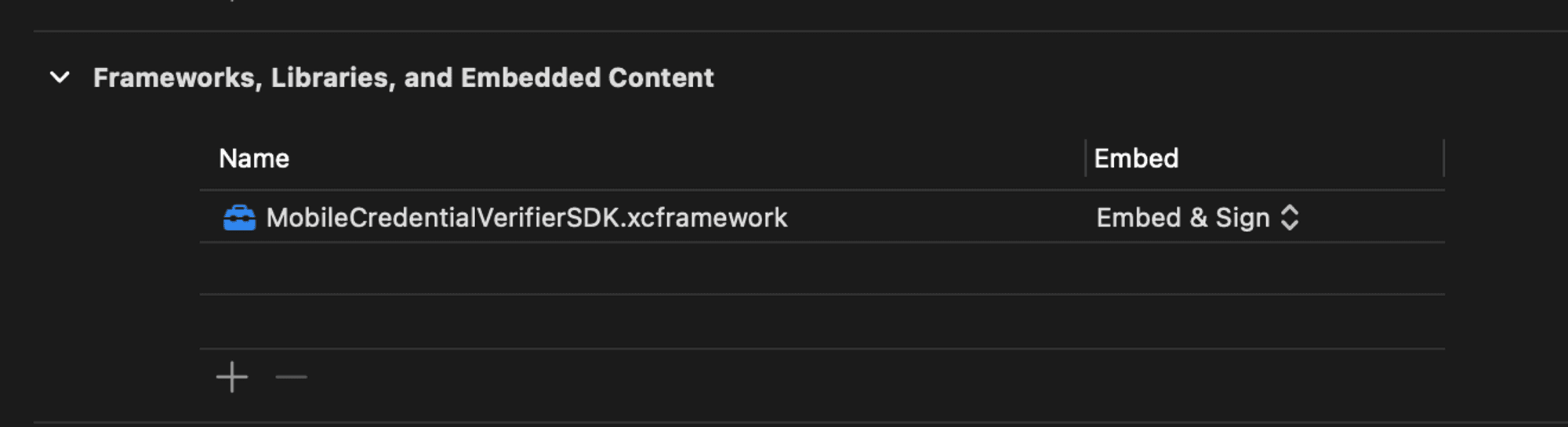
MobileCredentialVerifierSDK.xcframeworkto Embed & sign.
See Add existing files and folders for detailed instructions.
This should result in the following framework being added to your project:
Run the application
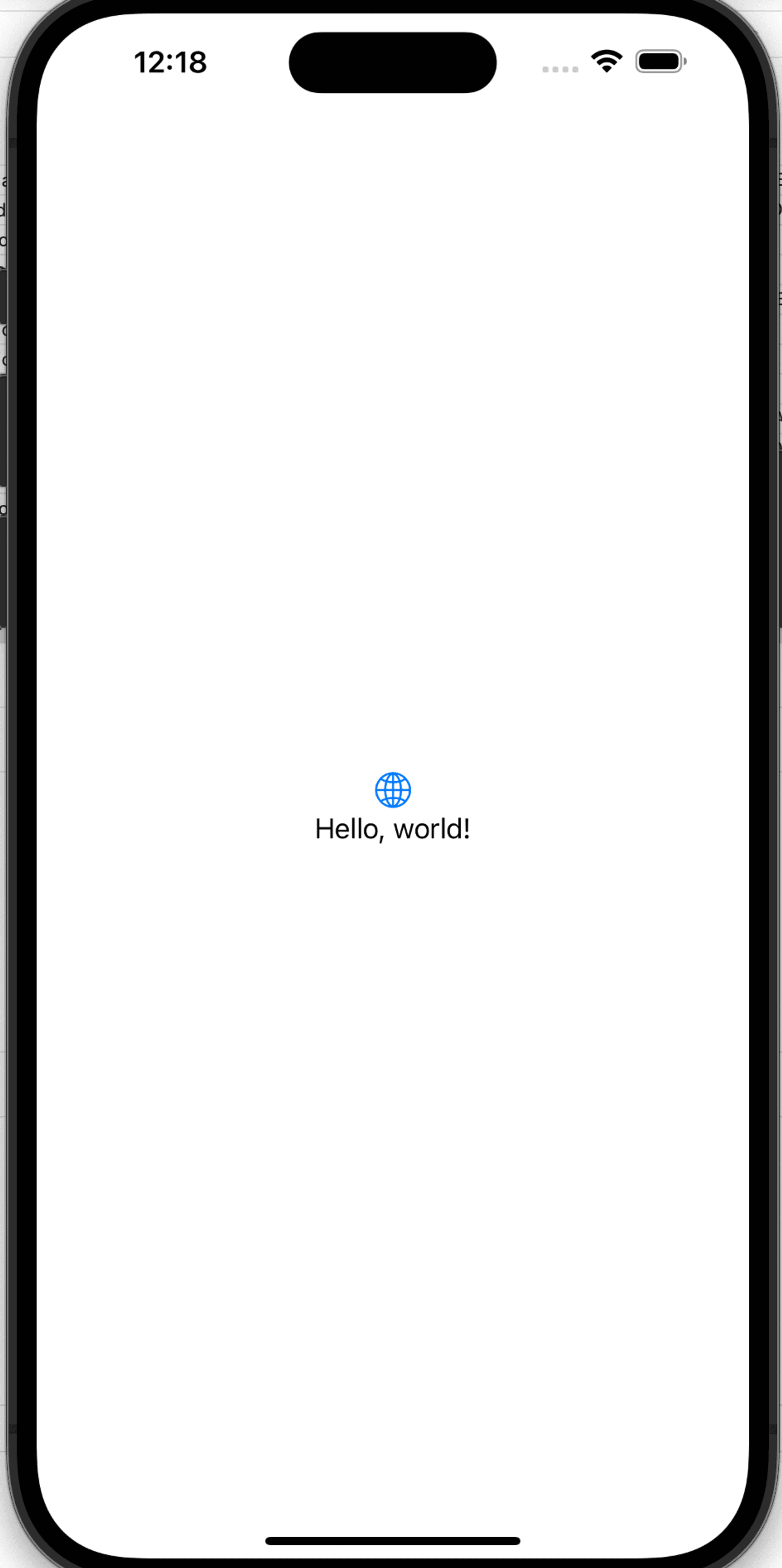
Select Run and make sure the application launches with a “Hello, world!” text in the middle of the display, as shown in the following image:
Configure application entitlement files
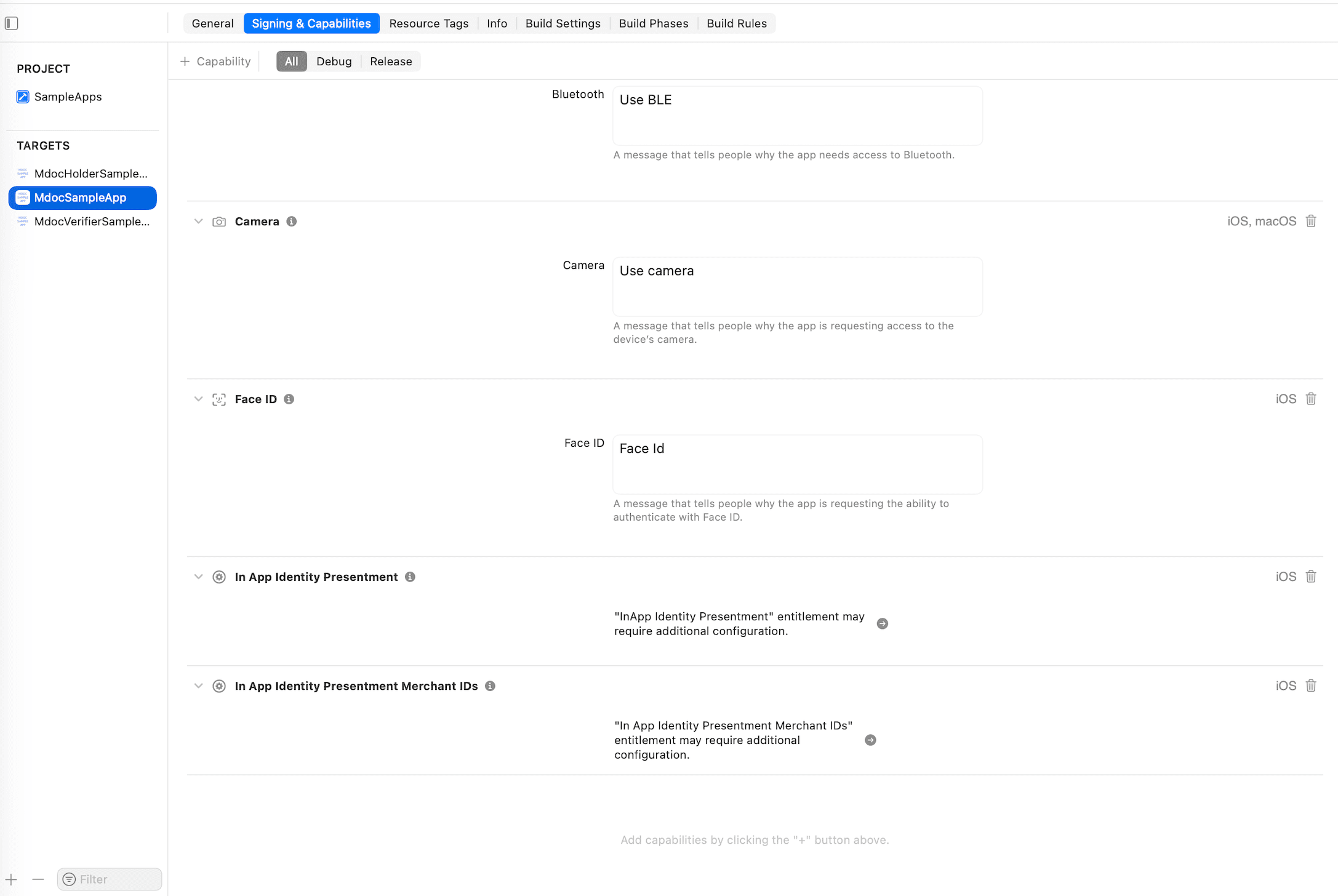
To enable your application to interact with the Apple Wallet, you must add the following capabilities to your Xcode project:
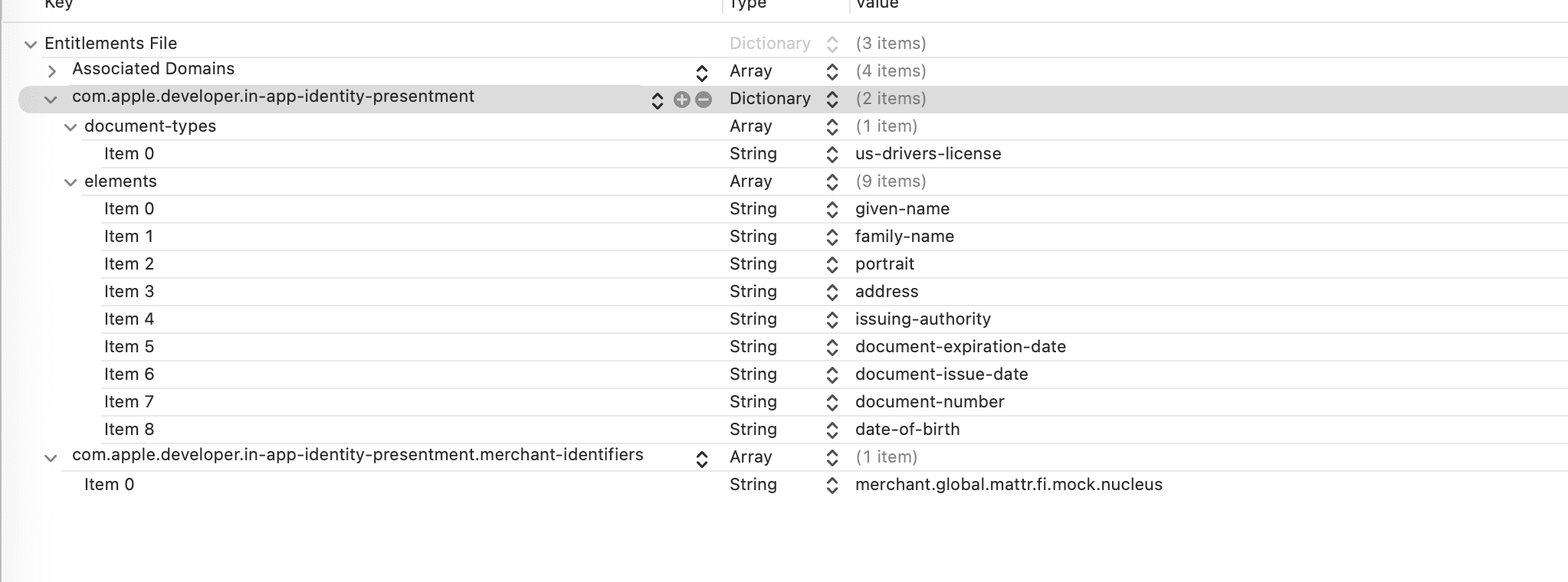
- Add the In App Identity Presentment capability and define the document types and elements you want to request for verification. You can find a list of supported document types and elements in the Apple Developer documentation.
- Add the In App Identity Presentment Merchant IDs and define the merchant IDs you created as part of your Verify with Apple Wallet entitlement request.
You can add these via the Signing & Capabilities tab of your Xcode project. For detailed instructions, see Add capabilities to your app.
Identity Presentment capabilities
Identity Presentment capabilities configuration
Initialize the SDK
The first capability you will build into your app is to initialize the SDK so that the app can use its functions and classes.
From v6.0.0, initialize is asynchronous and requires a PlatformConfiguration with both your tenant host and Verifier Application id (this drives the SDK Backend):
let platformConfiguration = PlatformConfiguration(
    tenantHost: URL(string: "https://learn.vii.au01.mattr.global")!,
    applicationId: "<YOUR_VERIFIER_APPLICATION_ID>"
)
try await mobileCredentialVerifier.initialize(platformConfiguration: platformConfiguration)tenantHost: Replace with the URL of your MATTR VII tenant.applicationId: Theidreturned when you created the verifier application.
Validate verification feasibility
Before displaying a Verify with Apple Wallet button, the SDK must confirm that the request can be met using the Apple Wallet. This includes validating:
- The identity of the verifier (using the provided
merchantId). - That the verifier is entitled to verify the requested credential type (using the provided
docTypein the credential request and comparing it against the entitlements associated with thismerchantId). - That the user has a credential that matches the requested
docTypein their Apple Wallet.
This is achieved by calling the fetchAppleWalletConfiguration method and providing a
MobileCredentialRequest (and a merchantId). The request defines what information is requested for
verification and is used by the Verify with Wallet API to determine whether the requested credential
type is supported by the entitlements associated with your application. The merchantId is the
merchant ID you created as part of your
Verify with Apple Wallet entitlement request,
and is used to determine whether this specific merchant is authorized to request the specified
credential type.
The MobileCredentialRequest defines what information is required for verification:
- The requested credential type (e.g.
org.iso.18013.5.1.mDL). - The claims required for verification (e.g.
family_name). - The requested namespace (e.g.
org.iso.18013.5.1). - Whether or not the verifier intends to persist the claim value (
true/false).
Call the fetchAppleWalletConfiguration method:
func fetchAppleWalletConfiguration(
    request: MobileCredentialRequest,
    merchantId: String
) async -> Result<AppleWallet, MobileCredentialVerifierError>
If all checks pass, this method returns an instance of the AppleWallet class, which includes the UI elements and methods required to request a credential from an Apple Wallet.
Your application can then present one of the returned UI elements (for example a Verify with Apple Wallet button) to the user, which when tapped would invoke the Apple Wallet to request the credential for verification.

MobileCredentialRequest example
    let mobileCredentialRequest = MobileCredentialRequest(
        docType: "org.iso.18013.5.1.mDL",
        namespaces: [
            "org.iso.18013.5.1":  [
                "family_name": false,
                "given_name": false,
                "birth_date": false
            ]
        ]
    )
Request a credential from an Apple Wallet
Once the user taps the Verify with Apple Wallet button, you can call the requestMobileCredentials
method on the AppleWallet instance to invoke the Apple Wallet and request the mDoc for
verification.
challenge: Unique value that must be generated by the verifier app. Should be a unique, unpredictable value generated for each verification session to mitigate replay attacks by ensuring the response from the Apple Wallet is tied to the current request and cannot be reused maliciously. Always generate a new challenge for every credential request.
Once called, this method orchestrates the interaction to request the mDoc for verification from the Apple Wallet. The user sees the Apple Wallet popup interface, where they can select the credential to present for verification and provide their consent to share the requested information.
Call the requestMobileCredentials method:
func requestMobileCredentials(challenge: String) async throws -> OnlinePresentationSessionResultDisplay verification results and continue the interaction
After the user consents, Apple Wallet sends the encrypted credential to the MATTR VII tenant. The
tenant decrypts and verifies it, then returns the verification results to your app as an
OnlinePresentationSessionResult.
The results are returned as an
OnlinePresentationSessionResult.
Your app should then:
- Validate the challenge in the
OnlinePresentationSessionResultmatches the one you sent in the request. - Parse the
OnlinePresentationSessionResultobject to extract the verification results. - Display the results to the user and continue the interaction accordingly.
How would you rate this page?
Last updated on