
In-person verification quickstart guide
This quickstart is for evaluating the MATTR Pi mDocs Verifier SDKs for in-person verification. In about 15-20 minutes you will configure a sample verifier mobile app (iOS, Android, or React Native), run it on a test device and use it to verify an mDoc presented in-person from a different device using the proximity presentation workflow defined by ISO/IEC 18013-5:2021.
Use this guide as a fast evaluation path to see the Verifier Mobile SDK working end-to-end on real devices. For detailed information and API examples, explore the tutorial and reference documentation tailored for each platform.
User experience
In this quickstart you will perform this exact flow yourself using the sample verifier app and the GO Hold example app:
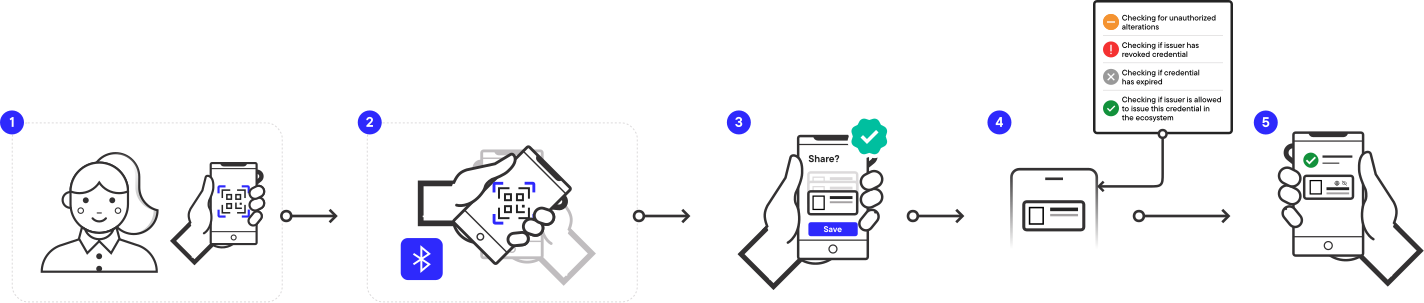
- The holder uses their wallet application to generate and present a QR code.
- The verifier scans the QR code, connects with the wallet, and requests an mDoc for verification.
- The wallet application displays matching credentials to the holder and asks for consent to share them with the verifier.
- The verifier application receives the wallet's response and verifies the provided credential.
- Verification results are displayed to the verifier.
Prerequisites
- Use the Get Started form to request a trial of MATTR verification capabilities. You will receive access to the following resources:
- MATTR Pi mDocs Verifier SDK for your chosen platform (iOS, Android, or React Native).
- MATTR VII tenant.
- Two physical mobile devices to run the verifier and holder applications:
- Development environment set up for your chosen platform (e.g., Xcode for iOS, Android Studio for Android, or a React Native development environment).
Steps
In this quickstart you will:
- Configure a local sample verifier project for your platform.
- Run a sample verifier app and verify a credential presented in-person from a holder device.
- Review the structure of the sample project so you can see how to integrate the SDK into your own app.
Use the tabs below to follow platform-specific setup steps.
Create a MATTR VII backend tenant (1-3 Minutes)
Every Verifier SDK requires a MATTR VII backend tenant. If you already have a tenant, you can skip this step.
- Log into the MATTR Portal.
- Select the Create/switch tenant button on the top-right side of the screen.
The All tenants panel is displayed, listing any existing tenants. - Select the Create new button.
The New tenant form is displayed. - Use the Region dropdown list to select the region your tenant will be hosted in.
- Use the Tenant subdomain text box to insert a subdomain for your tenant (e.g.
in-person-verification). - Select the Create button to create the new tenant.
- Copy the displayed tenant information (
audience,auth_url,tenant_url,client_idandclient_secret) which is required for the next step.
Get an access token (1 Minute)
The MATTR VII API requires a bearer access token. Use the credentials you recorded in the previous step to request one:
POST https://{auth_server}/oauth/tokenauth_server: Replace with theauth_urlvalue you recorded in the previous step.
{
    "client_id": "<YOUR_CLIENT_ID>",
    "client_secret": "<YOUR_CLIENT_SECRET>",
    "audience": "<YOUR_AUDIENCE>",
    "grant_type": "client_credentials"
}
A successful response returns the token:
{
    "access_token": "eyJhb********",
    "expires_in": 14400,
    "token_type": "Bearer"
}
Send the access_token as a bearer token in the Authorization header of every API request in this
quickstart. Refer to Obtain an access token for more
information.
Create a MATTR VII Verifier Application (3-5 Minutes)
Every Verifier SDK requires a Verifier Application on your MATTR VII tenant. React Native bridges both iOS and Android, so it needs one Verifier Application per platform you run the sample app on.
Create a Verifier Application for your platform:
- Log in to the MATTR Portal and expand the Credential verification section in the left-hand navigation panel.
- Select Applications, then select the Create new button.
- Use the Name text box to insert a meaningful and friendly name for your application.
- Use the Type radio button to select iOS.
- Use the Team ID text box to insert your Apple Developer Team ID, found in the "Membership details" of your Apple Developer account.
- Use the Bundle ID text box to insert the Bundle ID (
CFBundleIdentifier) of the iOS app you will create in the next step. - Leave Max time offline at its default value.
- Select the App Attest checkbox, then set App Attest to Inactive and App Attest environment to Development. This combination accepts both a build you run from Xcode on a physical device and an iOS Simulator instance.
- Leave Allowed presentation method set to In-person only.
- Select the Create button to create the application and display its detail screen.
- Copy and record the
IDvalue. You must use it when initializing the SDK so that it can correctly identify and authenticate your application.
Configure the sample verifier project (5-10 Minutes)
-
Access the sample verifier codebase by either:
-
Cloning the MATTR Sample Apps repository:
Clone sample apps git clone https://github.com/mattrglobal/sample-apps.git -
Or downloading just the iOS sample verifier project using download-directory.github.io.
-
-
Use Xcode to open the
.xcodeprojfile in the project's folder. You can find it in thesample-apps/ios-in-person-verifier-tutorial-sample-appdirectory. -
Drag the
MobileCredentialVerifierSDK.xcframeworkfolder (obtained from MATTR as part of the SDK package) into your project. -
Configure
MobileCredentialVerifierSDK.xcframeworkto Embed & sign. -
Set a unique bundle identifier for the project in the Xcode project settings (e.g.,
com.yourname.proximityverifier). This must match thebundleIdyou used when creating the Verifier Application in the Create a MATTR VII Verifier Application step. -
Open the
Constants.swiftfile and update it with your tenant and application details:Constants.swift static let tenantHost = URL(string: "https://your-tenant.vii.mattr.global")! static let applicationId = "<YOUR_VERIFIER_APPLICATION_ID>"tenantHost: Replace with the URL of your MATTR VII tenant, available in the MATTR Portal under Platform Management > Tenant.applicationId: Replace with theidreturned when you created the Verifier Application in the Create a MATTR VII Verifier Application step.
-
Run the project on a physical iOS device (simulators do not support the required Bluetooth capabilities).
Verify a credential using the sample verifier app (3 Minutes)
- On your holder testing device, launch the MATTR GO Hold example app.
- Tap the Blue Share button.
- Select Respond or Collect. This will open the camera view (You may need to allow the app to access your camera).
- Scan the following QR code:
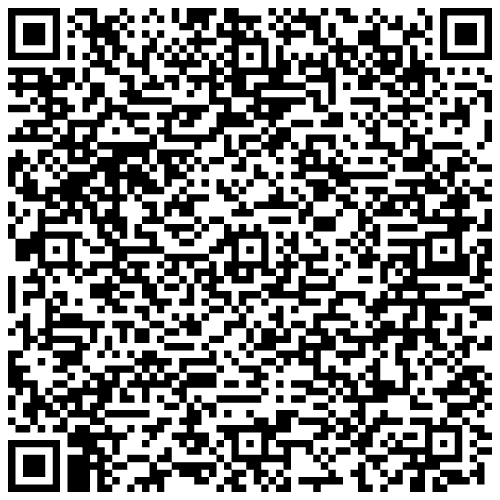
- Follow the on-screen instructions to claim the credential (Note that this workflow requires an active internet connection).
- Once the credential is claimed, select the Blue Share button again.
- Select Share Credential and then choose the Connection QR tab to display a QR code.
- On your verifier testing device, launch the sample verifier app and select the Scan QR Code button.
- Use the verifier testing device to scan the QR code displayed on the holder testing device.
- On your holder testing device, consent to sharing the information with the verifier.
- On your verifier testing device, review the verification results displayed in the app.
Behind the scenes, the Verifier Mobile SDK handles device engagement, secure session establishment, and verification of the mDoc according to ISO/IEC 18013-5:2021.
Review the codebase
The sample verifier application uses the Verifier Mobile SDK to verify mDocs presented in-person from a wallet. Once you have the sample application running, use this section to inspect the key SDK calls you will reuse in your own application.
The sample projects include code comments that explain the purpose of each step and how it maps to the in-person verification workflow. The key steps for handling in-person verification with the SDK are outlined below, along with links to the relevant API reference documentation for each platform.
Initialize the SDK
In the sample app, SDK initialization happens once during startup so the verifier can handle in-person sessions. An SDK Backend is required, so the SDK is initialized with a platform configuration that points at your MATTR VII tenant and Verifier Application. This registers the app instance and obtains a license on first launch.
initialize is asynchronous and takes a PlatformConfiguration. It can throw failedToRegister and invalidLicense when the SDK Backend connection fails:
let platformConfiguration = PlatformConfiguration(
    tenantHost: URL(string: "https://your-tenant.vii.mattr.global")!,
    applicationId: "<YOUR_VERIFIER_APPLICATION_ID>"
)
try await mobileCredentialVerifier.initialize(platformConfiguration: platformConfiguration)
Adding a trusted issuer certificate
In the sample app, a trusted issuer certificate is added during startup after SDK initialization. This allows the verifier to validate the authenticity of credentials issued by trusted issuers.
try await mobileCredentialVerifier.addTrustedIssuerCertificates(certificates: [certificate])certificate: Pass the IACA certificate of an issuer you want your application to trust.
Create a presentation request object
Before sending a presentation request to the holder, the verifier application needs to create a request object that defines the type of credential and specific attributes being requested for verification.
    let mobileCredentialRequest = MobileCredentialRequest(
        docType: "<DocType>",
        namespaces: [
            "<Namespace>": [
                "<AttributeName1>": false,
                "<AttributeName2>": false,
                "<AttributeName3>": false
            ]
        ]
)docType: The type of credential being requested (e.g., an mDL).namespaces: A dictionary mapping each namespace to its requested attributes. Each attribute is a key with a Boolean indicating whether the verifier intends to retain this attribute (true) or not (false).
Create a proximity presentation session
Once the verifier application receives a device engagement string (e.g., from scanning a QR code presented by the holder), it can create a proximity presentation session to establish a secure connection with the holder's wallet and send presentation requests.
- Extend a class with the
ProximityPresentationSessionListenerprotocol:
extension VerifierViewModel: ProximityPresentationSessionListener {
  public func onEstablished() {
    // Handle session establishment: show presentation session details or send a request.
  }
  public func onTerminated(error: (any Error)?) {
    /// Handle session termination
    print("Session Terminated")
  }
}- Call the
createProximityPresentationSessionfunction with an instance of the extended class:
mobileCredentialVerifier.createProximityPresentationSession(encodedDeviceEngagementString: deviceEngagementString, listener: self)encodedDeviceEngagementString: Pass the device engagement string retrieved from a QR code presented by the holder.listener: An object that conforms toProximityPresentationSessionListenerprotocol and will handle the session events.
Listen to NFC session requests
To support NFC-based device engagement in addition to QR code scanning, the verifier application can listen for NFC session requests. When an NFC session request is received, the SDK will automatically create a proximity presentation session and trigger the appropriate session listener callbacks.
This capability is currently only available in the Android SDK.
Send a presentation request
After a proximity presentation session is established (e.g., after scanning a QR code or receiving an NFC engagement), the verifier application can send a presentation request to the holder's wallet to request specific credentials for verification.
try await mobileCredentialVerifier.sendProximityPresentationRequest(request: [mobileCredentialRequest], checkStatus: true)request: Pass theMobileCredentialRequestobject created in the previous step.checkStatus: A Boolean indicating whether to check credential revocation status. Set totrue(default) to check credential revocation status as part of the verification, orfalseto skip status checking.
Handle the presentation response
After sending a presentation request, the verifier application will receive a response from the holder's wallet containing the credentials that match the request along with their verification status. The application can then handle this response to display verification results to the user.
The
sendProximityPresentationRequest
method returns a
MobileCredentialResponse
object. This response contains the presentation details provided by the holder, including any errors
encountered and the verification status of the credentials returned in the response:
let mobileCredentialResponse = MobileCredentialResponse(
    credentialErrors: [/* CredentialError */],
    credentials: [
        MobileCredentialPresentation(
            branding: /* Branding information for displaying the credential */,
            claimErrors: [
                /* Namespace */: [
                    /* ElementID */: /* MobileCredentialResponseErrorCode */
                ]
            ],
            claims: [
                /* Namespace */: [
                    /* ElementID */: /* MobileCredentialElementValue */
                ]
            ],
            docType: /* DocType */,
            issuerInfo: /* IssuerInfo */,
            validityInfo: /* Validity */,
            verificationResult: /* VerificationResult */
        )
    ]
)credentialErrors: Any requested docTypes not returned by the holder.credentials: A list of presented credentials with their data, status, and any attribute-specific errors.
Next steps
- For your evaluation:
- Note how long it took to configure and run the sample verifier app and complete an in-person verification.
- Consider how the sample’s presentation request and UI map to your real in-person verification use cases (for example, which attributes you would request and how you would display them).
- Explore the in-person verification tutorial for detailed instructions, configuration options, and production-grade patterns.
- Review the mDocs Verifier SDK overview to understand platform support, capabilities, and how proximity and remote verification relate.
How would you rate this page?
Last updated on