
How to enable the DC API in MATTR GO Hold
Learn what you need to provide and configure so MATTR can enable the Digital Credentials API in your MATTR GO Hold app.
Digital Credentials (DC) API support is currently offered as a tech preview. Platform implementations continue to evolve, so functionality may be limited and could change as browsers and operating systems update their implementations.
Overview
Enabling the Digital Credentials API (DC API) in your MATTR GO Hold app lets your holders present credentials to websites directly through their browser. To see what your holders will experience, refer to How a holder experiences a DC API request and How the credential picker differs on iOS and Android.
This guide covers what you need to provide and configure so MATTR can enable and implement the DC API in your app.
On Android, no action is needed from you beyond confirming that you want the DC API enabled. The remaining steps apply to iOS only.
iOS limits which credential types can be shared through the DC API. Check that the credentials your app holds are supported by reviewing Credential types that can be requested.
Prerequisites
- A white-label MATTR GO Hold app.
- Someone with the Account Holder or Admin role in your Apple Developer account. Apple requires one of these roles to manage identifiers and provisioning profiles.
- Someone who can change your app re-signing process.
Steps 1 and 2 do not require technical knowledge. Steps 3 to 5 should be completed by the person or team that manages your app signing, App IDs, and provisioning profiles.
If you use separate bundle IDs for different environments, such as development, test, and production, complete steps 3 to 5 for each environment.
Enable the DC API
Review the iOS intent screen wording
On iOS, after the holder selects your app, iOS displays an intent screen that belongs to your app. It shows who is requesting the credential, lets the holder choose a matching credential, and lists the information that will be shared. If something goes wrong, an error screen is shown instead.
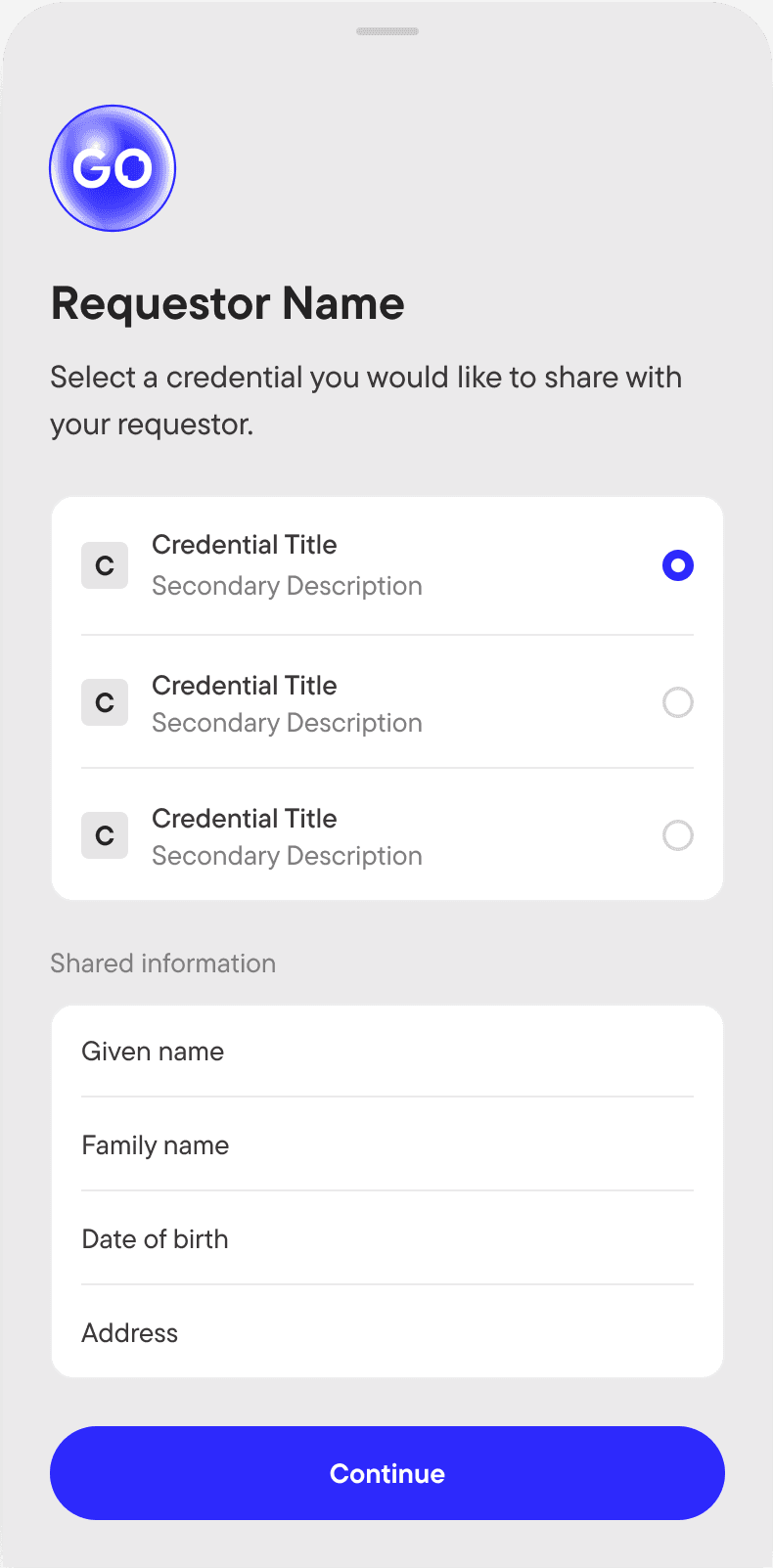
Intent screen
Shown after the holder selects your app. The icon and background are inherited from your app.
Review the following elements of the intent screen. For each configurable element, either confirm the default or provide your preferred wording. If your app supports multiple languages, provide a translation of the wording for each language, whether you keep the default or not.
| Element | Description | Default | Notes |
|---|---|---|---|
| Icon | Displayed at the top of the screen | Your app icon | No action required unless your app icon is changing. |
| Background color | Background surface of the screen | Matches your existing app theme | No action required unless your app theme is changing. |
| Hint text | Shown under the requester name | "Select a credential you would like to share." | |
| Shared information heading | Displayed above the requested information | "Shared information" | |
| Continue button | Button at the bottom of the screen | "Continue" | Uses your app's primary button style. |
Review the iOS error screen wording
The holder sees an error screen, as shown in the previous step, if a credential cannot be loaded or shared. Confirm the default wording or provide wording that better matches the rest of your app. If your app supports multiple languages, provide a translation for each language.
| Error | When it appears | Default heading | Default text |
|---|---|---|---|
| Unable to load | The intent screen fails to load | Something went wrong | We're unable to load this feature right now. Please try again. |
| Sharing failed | The holder selects a credential, but it cannot be sent | Something went wrong | We couldn't complete sharing your credential or information. Please try again. |
Both error screens use the same icon as the other error screens in your app.
Configure your Apple Developer account
Apple treats the DC API extension as a separate part of your app, with its own App ID and provisioning profile. Your main app and the extension share credentials through an App Group.
Complete the following tasks in Certificates, Identifiers & Profiles in your Apple Developer account. Follow the linked Apple guide for each task, using the values listed here.
| Task | Values to use | Apple guide |
|---|---|---|
| Register an App Group | An identifier in the form group.<name>, one for each environment | Register an app group |
| Register an App ID for the extension | Bundle ID {BUNDLE_ID}.IdentityDocumentProvider. Enable the App Groups and Digital Credentials API capabilities, and assign the App Group you registered. | Register an App ID and Enable app capabilities |
| Update your main app's App ID | Assign the same App Group, and enable the Digital Credentials API capability. | Enable app capabilities |
| Create a provisioning profile for the extension | Select the extension App ID. Choose the profile type that matches the environment, such as development or App Store distribution. | Create a development provisioning profile or Create an App Store provisioning profile |
| Regenerate your main app's provisioning profiles | Every profile that uses your main app's App ID. | Edit, download, or delete provisioning profiles |
Your main app and the extension must be assigned the same App Group. If they use different App Groups, everything still signs and the extension still launches, but it cannot see any of the credentials your app holds.
Changing the capabilities of an App ID makes the provisioning profiles that use it invalid, which is why your main app's profiles must be regenerated.
Update your entitlements
The examples below use the following placeholders:
| Placeholder | Replace with |
|---|---|
{APP_GROUP_ID} | The App Group identifier you registered in step 3 |
{TEAM_ID} | Your Apple Developer Team ID |
{BUNDLE_ID} | The bundle ID of your main app |
Add the following entries to your main app's existing entitlements file. Keep everything else in
the file as it is, including the app's existing application-identifier.
<key>com.apple.developer.identity-document-services.document-provider.mobile-document-types</key>
<array>
  <string>org.iso.18013.5.1.mDL</string>
  <string>eu.europa.ec.av.1</string>
  <string>eu.europa.ec.eudi.pid.1</string>
  <string>org.iso.23220.photoid.1</string>
  <string>org.iso.23220.1.jp.mnc</string>
</array>
<key>com.apple.security.application-groups</key>
<array>
  <string>{APP_GROUP_ID}</string>
</array>
<key>keychain-access-groups</key>
<array>
  <string>{TEAM_ID}.{BUNDLE_ID}</string>
</array>
Then create a separate entitlements file for the extension:
<?xml version="1.0" encoding="UTF-8"?>
<!DOCTYPE plist PUBLIC "-//Apple//DTD PLIST 1.0//EN" "http://www.apple.com/DTDs/PropertyList-1.0.dtd">
<plist version="1.0">
<dict>
  <key>application-identifier</key>
  <string>{TEAM_ID}.{BUNDLE_ID}.IdentityDocumentProvider</string>
  <key>com.apple.developer.team-identifier</key>
  <string>{TEAM_ID}</string>
  <key>com.apple.developer.identity-document-services.document-provider.mobile-document-types</key>
  <array>
    <string>org.iso.18013.5.1.mDL</string>
    <string>eu.europa.ec.av.1</string>
    <string>eu.europa.ec.eudi.pid.1</string>
    <string>org.iso.23220.photoid.1</string>
    <string>org.iso.23220.1.jp.mnc</string>
  </array>
  <key>com.apple.security.application-groups</key>
  <array>
    <string>{APP_GROUP_ID}</string>
  </array>
  <key>keychain-access-groups</key>
  <array>
    <string>{TEAM_ID}.{BUNDLE_ID}</string>
  </array>
</dict>
</plist>
The document types listed are the credential types your app can offer through the DC API on iOS. For what each type covers, refer to Credential types that can be requested.
The keychain access group in both files uses your main app's identifier, not the extension's. The main app and the extension must use the same App Group and the same keychain access group.
Update your app re-signing process
The extension is a second binary nested inside your app, so it needs its own provisioning profile and its own entitlements alongside the ones you already handle for the main app.
Re-signing processes differ between organizations. The following describes only what the extension adds to your existing process. Adapt it to your tooling.
- Embed each provisioning profile in its own bundle:
- The main app profile in the
.appbundle. - The extension profile in
Extensions/IdentityDocumentProvider.appex.
- The main app profile in the
- Sign from the inside out:
- Sign any frameworks first, without entitlements.
- Sign the extension with the extension entitlements file.
- Sign the main app last, with the main app entitlements file.
- Repackage the app using your existing process.
- Verify the signed app by inspecting the entitlements of both signed binaries, and check that:
- The
application-identifieris different for the main app and the extension. - The App Group is the same for both.
- The keychain access group is the same for both.
- The
Do not use deep signing. It applies the main app's entitlements to the extension.
Signing order matters because the main app's signature includes a fingerprint of everything nested inside it. If you change the extension after signing the main app, installation fails without mentioning the extension.
Send your details to MATTR
Email the following details to your MATTR representative:
- Confirmation that you want the DC API enabled in your app.
- Your intent screen and error screen wording, or confirmation that you are happy with the defaults.
- Translations for each language your app supports (optional).
- Confirmation that steps 3 to 5 are complete for each environment.
Once we have your details, MATTR completes the DC API implementation for your app. If you are unsure which steps apply to you, contact your MATTR representative.
Troubleshooting
Installation fails with "not a valid bundle"
The same Apple Team ID must be used everywhere in your signing configuration. Check that it matches across:
- The signing certificate.
- The main app entitlements.
- The extension entitlements.
- The main app provisioning profile.
- The extension provisioning profile.
Signing and verification can both succeed with a Team ID mismatch, so the problem may only appear when the app is installed.
The extension cannot find any credentials
Your main app and the extension are probably assigned different App Groups. Check that both App IDs, and both entitlements files, use the same App Group identifier.
What's next?
- Learn more about the DC API from a holder's perspective.
- Check the MATTR GO Hold system requirements.
- Read Apple's IdentityDocumentServices documentation.
How would you rate this page?
Last updated on