
Learn how to build an application that can present an mDoc remotely
Introduction
In this tutorial you will use the mDocs Holder SDKs to build an application that can present a claimed mDoc to a verifier remotely via a remote presentation workflow as per ISO/IEC 18013-7:2025 and OID4VP.
This app will support both same-device and cross-device workflows to accommodate flexible user journeys.
Same-device workflow

- The user interacts with a website on their mobile device browser.
- The user is asked to present information as part of the interaction.
- The user is redirected to the application you will build in this tutorial.
- The application authenticates the user.
- The user is informed of what information they are about to share and provide their consent.
- The user is redirected back to the browser where verification results are displayed, enabling them to continue with the interaction.
The result will look something like this:
Cross-device workflow

- The user interacts with a website on their desktop browser.
- The user is asked to present information as part of the interaction.
- The user scans a QR code using a mobile device where the tutorial application is installed.
- The tutorial application is launched on the mobile device.
- The tutorial application authenticates the user.
- The user is informed of what information they are about to share and provide their consent.
- Verification results are displayed in the user's desktop browser, enabling them to continue with the interaction.
The result will look something like this:
Prerequisites
Before you get started, let's make sure you have everything you need.
Prior knowledge
-
The presentation workflow described in this tutorial is based on ISO/IEC 18013-7:2025 and OID4VP. If you are unfamiliar with these technical specifications, refer to the following resources for more information:
- What are mDocs?
- What is credential verification?
- Breakdown of the remote presentation workflow.
-
We assume you have experience developing applications in the relevant programming languages and frameworks (Swift for iOS, Kotlin for Android and TypeScript for React Native).
If you need to get a holding solution up and running quickly with minimal development resources and in-house domain expertise, talk to us about our white-label MATTR GO Hold app which might be a good fit for you.
Prerequisite tutorial
- You must complete the Claim a credential tutorial and claim the mDoc provided in the tutorial.
- This application is used as the base for the current tutorial.
Testing devices
- Supported iOS device to run the built application on, setup with:
- Biometric authentication (Face ID, Touch ID).
- Available internet connection.
Got everything? Let's get going!
Tutorial steps
To enable a user to present a stored mDoc to a verifier via an online presentation workflow, you will build the following capabilities into your application:
- Register the verifier's Authorization endpoint.
- Create an online presentation session.
- Handle a presentation request.
- Send a presentation response.
Step 1: Register the verifier's Authorization endpoint
The Authorization endpoint is a URI associated with an application identifier in the MATTR VII tenant configuration. It is used to invoke an application that will handle the presentation request. The application then uses the URI to retrieve a request object, which details what information is required for verification.
Online verifiers are recommended to generate this URI as a Universal link for iOS and App Link for Android, as this enables them to explicitly define and validate applications that can respond to their verification requests.
However, for simplicity reasons in this tutorial our verifier is using a
custom URI scheme
for iOS and a deep link for Android,
both matching the default scheme defined by the OID4VP specification (mdoc-openid4vp). This means
that you need to configure the application to be able to handle this custom URI scheme.
-
Open the Xcode project with the application built in the Claim a credential tutorial.
-
Register
mdoc-openid4vpas a recognized URL scheme:- Open the project view and select your application target.
- Select the Info tab.
- Scroll down and expand the URL Types area.
- Select the plus button.
- Insert
mdoc-openid4vpin both the Identifier and URL Schemes fields.
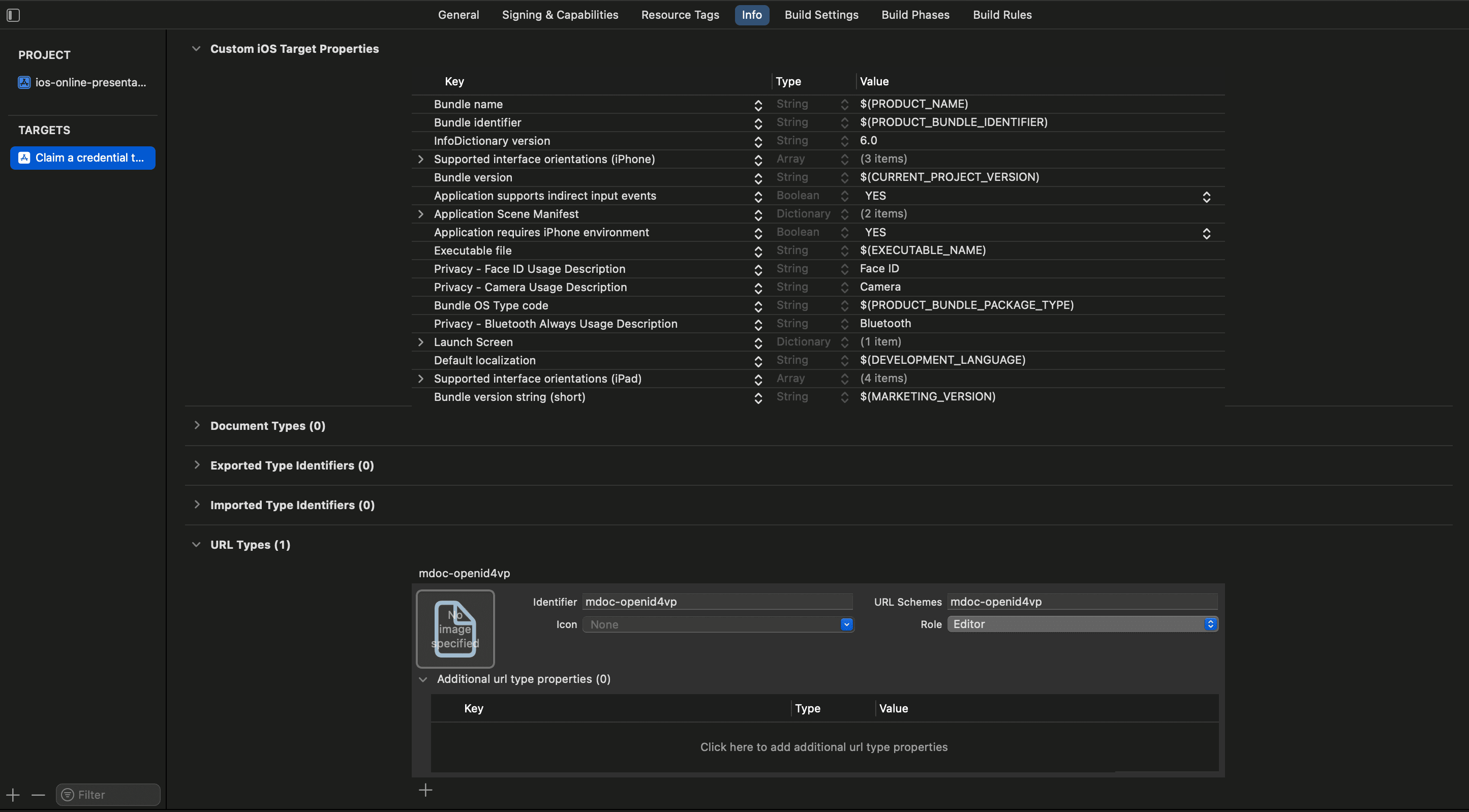
-
Run the app and then close it (this updates the app on your testing device) and perform the following instructions:
- Use a desktop browser to navigate to the MATTR Labs Verify Credentials tool.
- Select OID4VP (Redirect) from the Select Experience list.
- Select Request credentials.
- Open the camera on your testing mobile device and scan the QR code.
- Confirm opening the QR code with your tutorial application.
- The tutorial application should be launched on your testing mobile device.
Step 2: Create an online presentation session
Now that the application can handle an OID4VP custom URI scheme, the next step is to build the capability to use the request URI to retrieve the request object. This object details:
- What credentials are required.
- What specific claims are required from these credentials.
- What MATTR VII tenant to interact with.
-
In your project's
ContentViewfile, add the following code under the// Online Presentation - Step 2.1: Create a variable to hold the online presentation session objectcomment to create a variable that will hold the online presentation session:ContentView var onlinePresentationSession: OnlinePresentationSession?
The following step is also included in the Proximity presentation tutorial. If you had already completed this tutorial you may skip to step 3.
-
Add the following code under the
// Proximity and Online Presentation: Create variables for credential presentationscomment to create the following variables:ContentView var matchedCredentials: [MobileCredential] = [] var matchedMetadata: [MobileCredentialMetadata] = [] var credentialRequest: [MobileCredentialRequest] = []matchedCredentials: Holds stored credentials that match the credential request.matchedMetadata: Holds metadata of credentials that match the credential request.credentialRequest: Holds the credentials that were requested for verification.
-
Replace the
printstatement under the// Online Presentation - Step 2.3: Create online presentation sessioncomment with the following code to create a function that calls the SDK'screateOnlinePresentationSessionmethod with theauthorizationRequestURIparameter (the request URI retrieved from the link/QR code):ContentView Task { do { onlinePresentationSession = try await mobileCredentialHolder.createOnlinePresentationSession(authorizationRequestUri: authorizationRequestURI, requireTrustedVerifier: false) let matched = onlinePresentationSession?.getMatchedCredentials() ?? [] matchedMetadata = matched .flatMap { $0.matchedMobileCredentials } credentialRequest = matched .map { $0.request } } catch { print(error.localizedDescription) } }This function:
- Creates an
OnlinePresentationSessioninstance and assigns it to theonlinePresentationSessionvariable. - Stores matched
MobileCredentialMetadatain thematchedMetadatavariable and theMobileCredentialRequestin thecredentialRequestvariable in ourViewModelto enable displaying these values to the user.
- Creates an
We chose to set requireTrustedVerifier parameter to false because we want
the SDK to trust all verifiers by default. If you require to limit the
verifiers a user can interact with, you may want to manually add trusted
verifier certificates and set the parameter to true. You can learn more
about certificate management in our SDK
docs.
-
Add the following code under the
// Online Presentation - Step 2.4: Create session from request URIcomment to add an onOpenURL modifier that will call thecreateOnlinePresentationSessionfunction when the application is launched following selecting a link (same-device flow) or scanning a QR code (cross-device flow) that includes a registered URI:ContentView .onOpenURL { url in Task { await viewModel.createOnlinePresentationSession(authorizationRequestURI: url.absoluteString) } // Navigate to online presentation view viewModel.navigationPath.append(NavigationState.onlinePresentation) }Now, once a user opens an online presentation link on their device, an online presentation session will be created the user will be navigated to a new view, which you will implement in the next step.
Step 3: Handle a presentation request
We will now build the capability to use information retrieved by the
createOnlinePresentationSession function to handle the presentation request. This includes:
- Displaying what information is requested.
- Displaying what existing credentials match the requested information.
- Displaying what information from these existing claims will be shared with the verifier.
- Asking for the user's consent to share requested information from matching credentials.
The following two steps are also included in the Proximity presentation tutorial. If you had already completed this tutorial you may skip to step 3.
-
Replace the
printstatement under the// Proximity and Online Presentation: Retrieve a credential from storagecomment with the following code create a function that uses the SDK's getCredential method to retrieve a credential from the application storage:ContentView Task { do { let credential = try await mobileCredentialHolder.getCredential(credentialId: id) matchedCredentials.append(credential) } catch { print(error) } }The MobileCredentialMetadata object does not include the values of claims included in the credential. To display these values, the above function calls the SDK's getCredential method with the
idproperty of the MobileCredentialMetadata. -
Create a new file called
PresentCredentialsView.swiftand paste the following code to create a view to display credential requests and matching credentials stored in the application:PresentCredentialsView import MobileCredentialHolderSDK import SwiftUI struct PresentCredentialsView: View { var viewModel: PresentCredentialsViewModel @State var selectedID: String? var body: some View { ScrollView { VStack(alignment: .leading, spacing: 20) { Text("Requested Documents") .font(.headline) .padding(.leading) ForEach(viewModel.requestedDocuments, id: \.docType) { requestedDocument in DocumentView(viewModel: DocumentViewModel(from: requestedDocument)) } Text("Matched Credentials") .font(.headline) .padding(.leading) ForEach(viewModel.matchedMetadata, id: \.id) { matchedMetadata in VStack(alignment: .leading, spacing: 10) { if let matchedCredential = viewModel.matchedMobileCredential(id: matchedMetadata.id) { DocumentView(viewModel: DocumentViewModel(from: matchedCredential)) .padding(.vertical) .background(selectedID == matchedMetadata.id ? Color.blue.opacity(0.2) : Color.clear) .onTapGesture { guard selectedID != matchedMetadata.id else { selectedID = nil return } selectedID = matchedMetadata.id } Button("Hide claim values") { viewModel.matchedCredentials.removeAll(where: { $0.id == matchedMetadata.id }) } .frame(maxWidth: .infinity, alignment: .center) } else { DocumentView(viewModel: DocumentViewModel(from: matchedMetadata)) .padding(.vertical) .background(selectedID == matchedMetadata.id ? Color.blue.opacity(0.2) : Color.clear) .onTapGesture { guard selectedID != matchedMetadata.id else { selectedID = nil return } selectedID = matchedMetadata.id } Button("Show claim values") { viewModel.getCredentialAction(matchedMetadata.id) } .frame(maxWidth: .infinity, alignment: .center) } } } } } if selectedID != nil { Button("Send Response") { viewModel.sendCredentialAction(selectedID!) } .buttonStyle(.borderedProminent) .clipShape(Capsule()) .frame(maxWidth: .infinity, alignment: .center) } } } // MARK: PresentCredentialsViewModel class PresentCredentialsViewModel { @Binding var requestedDocuments: [MobileCredentialRequest] @Binding var matchedCredentials: [MobileCredential] @Binding var matchedMetadata: [MobileCredentialMetadata] var getCredentialAction: (String) -> Void var sendCredentialAction: (String) -> Void init( requestedDocuments: Binding<[MobileCredentialRequest]>, matchedCredentials: Binding<[MobileCredential]>, matchedMetadata: Binding<[MobileCredentialMetadata]>, sendCredentialAction: @escaping (String) -> Void, getCredentialAction: @escaping (String) -> Void ) { self._requestedDocuments = requestedDocuments self._matchedCredentials = matchedCredentials self._matchedMetadata = matchedMetadata self.sendCredentialAction = sendCredentialAction self.getCredentialAction = getCredentialAction } func matchedMobileCredential(id: String) -> MobileCredential? { matchedCredentials.first(where: { $0.id == id }) } }The
PresentCredentialsViewview is used to:- Display requested information.
- Display stored credentials that include the requested information.
- Enable the user to provide consent to sharing the requested information with the verifier.
The
PresentCredentialsViewModelobject is used to reference values from a credential request. It takes two closures in its initializer:getCredentialAction: (String) -> Voidis used to display claim values.sendCredentialAction: (String) -> Voidis used to send a credential response to the verifier once the user selected a credential and provided consent by selecting the Send Response button.
-
Back in your
ContentViewfile, ReplaceEmptyViewunder the// Online Presentation - Step 3.3: Display online presentation viewcomment with the new view that you created:
    PresentCredentialsView(
        viewModel: PresentCredentialsViewModel(
            requestedDocuments: $viewModel.credentialRequest,
            matchedCredentials: $viewModel.matchedCredentials,
            matchedMetadata: $viewModel.matchedMetadata,
            sendCredentialAction: viewModel.sendOnlinePresentationSessionResponse(id:),
            getCredentialAction: viewModel.getCredential(id:)
        )
)- Replace the
return falsestatement under the// Online Presentation - Step 3.4: View Online Presentationcomment with the following code to enable the user to manually navigate to the presentation session view if required:
onlinePresentationSession != nil- Run
the app and then close it (this updates the app on your testing device) and perform the following
instructions:
- Use a desktop browser to navigate to the MATTR Labs Verify Credentials tool.
- Select OID4VP (Redirect) from the Select Experience list.
- Select Request credentials.
- Open the camera on your testing mobile device and scan the QR code.
- Confirm opening the QR code with your tutorial application.
- The tutorial application should be launched on your testing mobile device, displaying the verification request and any matching credentials.
- When a credential is selected, it will be highlighted and a Send Response button will appear (the logic associated with the button will be implemented in the next step).
The result will look something like this:
Step 4: Send response
After displaying matching credentials to the user and enabling them to select what credential to share, the last thing you need to do is build the capability to share the selected credential with the verifier.
- Replace the
printstatement under the// Online Presentation - Step 4.1: Send online presentation responsecomment with the following code to call thesendResponsemethod when the user selects the Send Response button:
        Task {
            do {
                _ = try await onlinePresentationSession?.sendResponse(credentialIds: [id])
                // set presentation session to nil after sending a response
                onlinePresentationSession = nil
                // Return to root view after the response is sent
                navigationPath = NavigationPath()
            } catch {
                print(error)
            }
        }
Step 5: Test the application
Let's test that the application is working as expected in both workflows.
Same-device workflow
- Run the app and then close it (this updates the app on your testing device).
- Use a browser on your testing mobile device to navigate to the MATTR Labs Verify Credentials tool.
- Select the OID4VP (Redirect) option from the Select Experience list.
- Select Request credentials.
- Select Allow to open the tutorial application.
- The tutorial application should be launched on your testing mobile device.
- Select the credential you wish to send to the verifier from the list of matched credentials.
- Select Send Response.
- You should be redirected back to the MATTR Labs Verify Credentials tool, where you will see a successful verification indication.
The result will look something like this:
Cross-device workflow
- Run the app and then close it (this updates the app on your testing device).
- Use a desktop browser to navigate to the MATTR Labs Verify Credentials tool.
- Select OID4VP (Redirect) from the Select Experience list.
- Select Request credentials.
- Open the camera on your testing mobile device and scan the QR code.
- Confirm opening the QR code with your tutorial application.
- The tutorial application should be launched on your testing mobile device.
- Select the credential you wish to send to the verifier from the list of matched credentials.
- Select Send Response.
- Back on your desktop browser, you should see a successful verification indication.
The result will look something like this:
Summary
You have just used the mDocs Holder SDKs to build an application that can present a claimed mDoc to a verifier remotely via an online presentation workflow as per ISO/IEC 18013-7:2025 and OID4VP.
This was achieved by building the following capabilities into the application:
- Handle an OID4VP request URI.
- Create an online presentation session.
- Handle a presentation request.
- Send a presentation response.
What's next?
- You can build additional capabilities into your new application:
- Present a claimed mDoc for verification via a proximity presentation workflow.
- You can build a web application that will interact with your wallet application via an online verification workflow.
- You can check out the SDKs reference documentation for more details on the available functions and classes:
How would you rate this page?
Last updated on