
Learn how to build an application that can present an mDoc via a proximity workflow
Introduction
In this tutorial you will use the mDocs Holder SDKs to build an application that can present a claimed mDoc to a verifier that supports proximity verification as per ISO/IEC 18013-5.
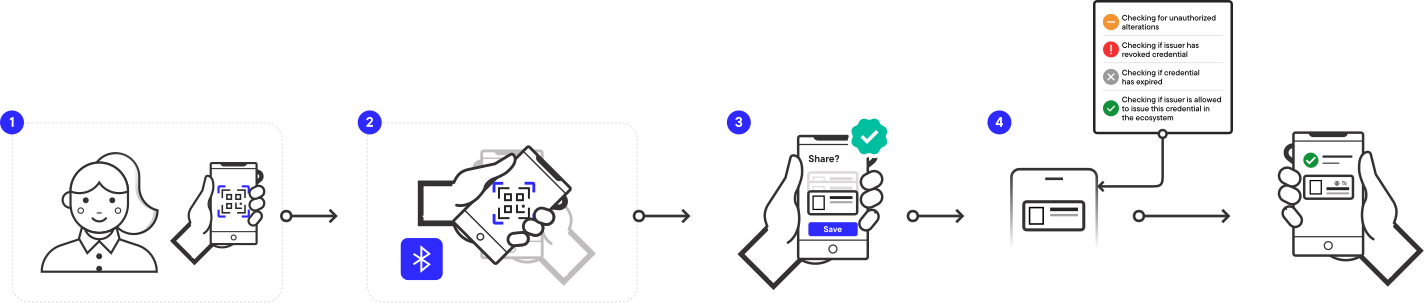
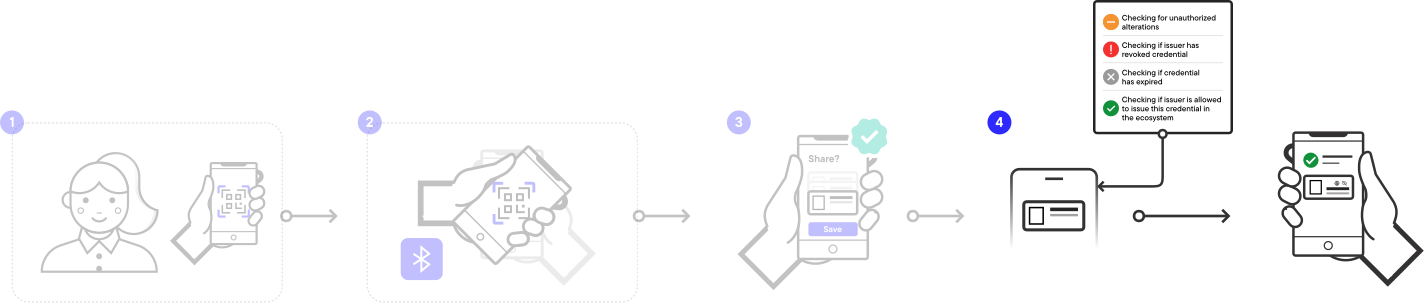
- The user launches the wallet application and generates a QR code.
- The verifier scans the QR code, connects with the wallet and requests an mDoc for verification.
- The wallet displays matching credentials to the user and asks for consent to share them with the verifier.
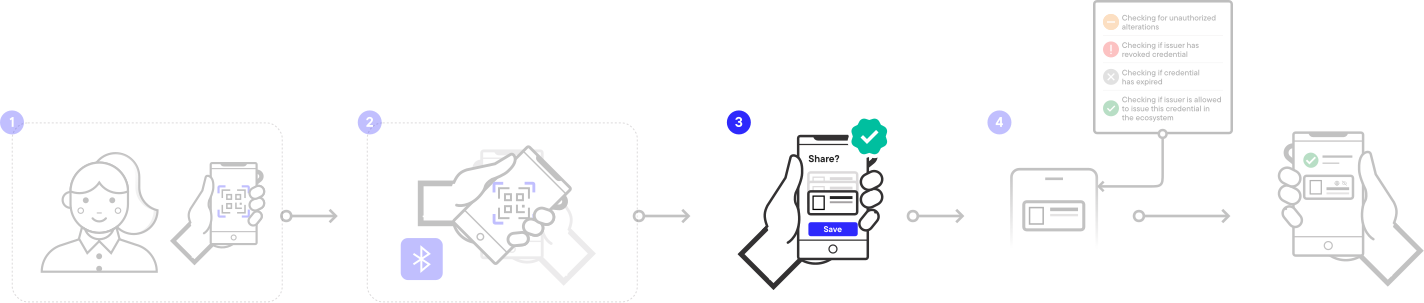
- The verifier receives the wallet's response and verifies the provided credential.
The result will look something like this:
Prerequisites
Before you get started, let's make sure you have everything you need.
Prior knowledge
-
The verification workflow described in this tutorial is based on the ISO/IEC 18013-5 standard. If you are unfamiliar with this standard, refer to the following resources for more information:
- What are mDocs?
- What is credential verification?
- Breakdown of the proximity presentation workflow.
-
We assume you have experience developing applications in the relevant programming languages and frameworks (Swift for iOS, Kotlin for Android and TypeScript for React Native).
If you need to get a holding solution up and running quickly with minimal development resources and in-house domain expertise, talk to us about our white-label MATTR GO Hold app which might be a good fit for you.
Prerequisite tutorial
- You must complete the Claim a credential tutorial and claim the mDoc provided in the tutorial.
- This application is used as the base for the current tutorial.
Testing devices
As this tutorial implements a proximity presentation workflow, you will need two separate physical devices to test the end-to-end result:
- Holder device:
- Supported iOS device to run the built application on, setup with:
- Biometric authentication.
- Bluetooth access.
- Available internet connection.
- Supported iOS device to run the built application on, setup with:
- Verifier device:
- Android/iOS device with an installed verifier application. We recommend downloading and using the MATTR GO Verify example app.
- Setup with Bluetooth access.
Got everything? Let's get going!
Tutorial steps
To enable a user to present a stored mDoc to a verifier via a proximity presentation workflow, you will build the following capabilities into your wallet application:
- Create a QR code for the verifier to scan and establish a secure connection.
- Receive and handle a presentation request from the verifier.
- Send a matching mDoc presentation to the verifier.
Step 1: Create a QR code for the verifier to scan
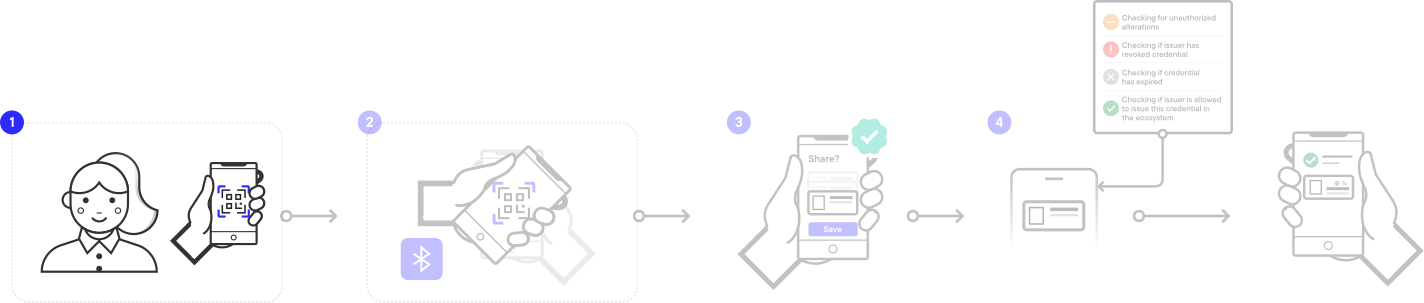
The first capability you need to build is to establish a secure communication channel between the verifier and holder devices. As defined in ISO/IEC 18130-5:2021, a proximity presentation workflow is always initiated by the holder (wallet user), who must create a QR code for the verifier to scan in order to initiate the device engagement phase.
To achieve this, your wallet application needs a UI element for the user to interact with and
trigger device engagement by calling the SDK's createProximityPresentationSession method.
-
Open the project that you built as part of the Claim a credential tutorial.
-
Open the
ContentViewfile and add the following code under the// Proximity Presentation - Step 1.2: Create deviceEngagementString and proximityPresentationSession variablescomment to create new variables to hold the device engagement string and the proximity presentation session.ContentView var deviceEngagementString: String? var proximityPresentationSession: ProximityPresentationSession? -
Replace the
printstatement under the// Proximity Presentation - Step 1.3: Create function to create a proximity presentation session and generate QR codecomment with the following code to call the SDK'screateProximityPresentationSessionmethod when the user selects the Create QR Code button:ContentView Task { @MainActor in do { proximityPresentationSession = try await mobileCredentialHolder.createProximityPresentationSession( onRequestReceived: onRequestReceived(_:error:), bleMode: .mDocPeripheralServer ) deviceEngagementString = proximityPresentationSession?.deviceEngagement } catch { print(error) } }bleMode: Many modern POS terminals do not support BLE server mode. To maximize compatibility when these terminals are used as mDoc verifiers, we recommend starting the presentation session inmDocPeripheralServermode. In this mode, the holder acts as the BLE peripheral server, while the verifier acts as the BLE central client.
At this stage the project won't compile because you need to update the signature of the
func onRequestReceived. Don't worry, we'll get to that in the next step. -
Replace the
funcstatement below the// Proximity Presentation - Step 1.4: Update function signaturecomment with the following code to update the function's signature (don't change the function body for now):ContentView func onRequestReceived(_ mobileCredentialRequests: [(request: MobileCredentialRequest, matchedMobileCredentials: [MobileCredentialMetadata])]?, error: Error?) { -
Replace the
EmptyView()statement under the// Proximity Presentation - Step 1.5: Add button to generate QR codecomment and add the following code to create a button that will generate the QR code when the user selects it:ContentView Button { viewModel.createDeviceEngagementString() // Navigates user to presentCredentialsView, once the string has been created. viewModel.navigationPath.append(NavigationState.presentCredentials) } label: { Text("Present Credentials") }
Now, when the user selects the Create QR Code button, the application will call the SDK's
createProximityPresentationSession
method, which returns a
ProximityPresentationSession
instance that includes a deviceEngagement string in base64 format:
"mdoc:owBjMS4wAYIB2BhYS6QBAiABIVgghaBYJe7KSqcEolhmnIJaYJ2AIevkKbEy5xP7tkwlqAwiWCAMGCGe6uFI2hKeghb59h_K4hPV-Ldq6vnaxsRiySMH9gKBgwIBowD0AfULUKRoj0ZH60Qco-m0k97qRSQ"The deviceEngagement string is always prefixed with mdoc: and contains the information required
to establish a secure connection between the two devices, including:
- Wireless communication protocols supported by the holder.
- How the verifier can connect with the holder.
- Ephemeral public key which is unique to the current session.
- Additional feature negotiations.
Your app needs to convert this deviceEngagement string into a QR code and display it in the wallet
UI for the verifier to scan.
-
Replace the
return nilstatement under the// Proximity Presentation - Step 1.6: Generate QR codecomment with the following code to retrieve data from thedeviceEngagementstring and convert it into a QR code:ContentView guard let filter = CIFilter(name: "CIQRCodeGenerator") else { return nil } filter.setValue(data, forKey: "inputMessage") guard let ciimage = filter.outputImage else { return nil } let transform = CGAffineTransform(scaleX: 10, y: 10) let scaledCIImage = ciimage.transformed(by: transform) let uiimage = UIImage(ciImage: scaledCIImage) return uiimage.pngData() -
Replace the
EmptyView()statement under the// Proximity Presentation - Step 1.7: Create QR code viewcomment with the following code to generate a QR Code and display it to the user:ContentView VStack { Text("Scan to establish device engagement session") .font(.title3) Spacer() if let imageData = generateQRCode(data: viewModel.deviceEngagementString?.data(using: .utf8) ?? Data()), let image = UIImage(data: imageData) { Image(uiImage: image) .resizable() .aspectRatio(contentMode: .fit) } Spacer() } -
Run the app and select the Present Credentials button. You should see a result similar to the following:
- As the user selects the Present Credentials button, they are navigated to the new view, and a new proximity presentation session is created.
- Once the session is created, the application generates and displays a QR code that can be scanned by a verifier device to establish a secure proximity communication channel over Bluetooth.
- Once the QR code is displayed, the
createProximityPresentationSessionfunction enters a listening state, ready to establish a Bluetooth connection with a verifier application that scans the QR Code. - When a verifier application scans the QR code, the devices will automatically exchange public keys
to establish a secure communication channel, enabling the verifier to send a presentation request,
which details:
- What credentials are required.
- What specific claims are required from these credentials.
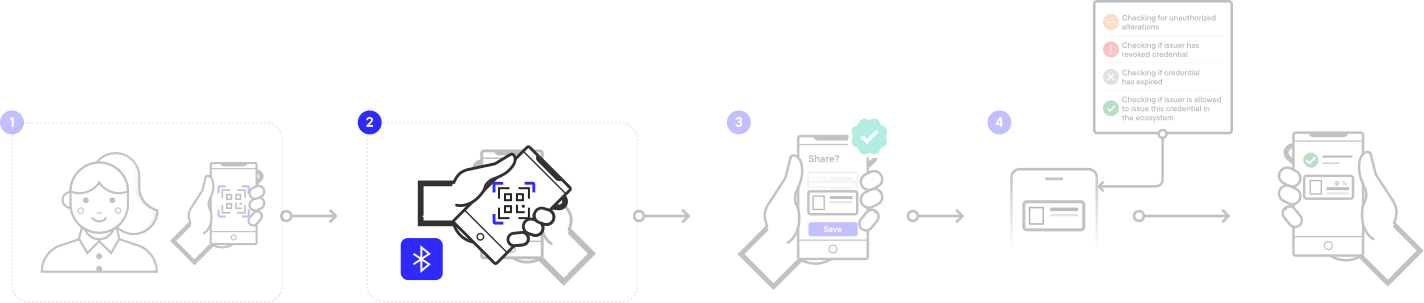
Step 2: Handle the presentation request
The createProximityPresentationSession function can handle three types of events:
onConnected: When a secure connection is established.onSessionTerminated: When a secure connection is terminated for whatever reason.onRequestReceived: When a presentation request is received from the verifier.
onConnected and onSessionTerminated are optional events and will not be
implemented in this tutorial. You can find more information about these events
in the reference documentation for the
iOS,
Android
and React
Native
SDKs.
When the SDK receives a presentation request from a verifier, an onRequestReceived event is
triggered. The SDK then checks its credential storage for any credentials that match the information
defined in this request.
The application then needs to:
- Present these matching credentials to the user.
- Present what claims will be shared with the verifier.
- Provide a UI element for the user to consent sharing this information with the verifier.
The following step is also included in the Online presentation tutorial. If you had already completed this tutorial you may skip to step 2.
-
Add the following code under the
// Proximity and Online Presentation: Create variables for credential presentationscomment to create the following variables:ContentView var matchedCredentials: [MobileCredential] = [] var matchedMetadata: [MobileCredentialMetadata] = [] var credentialRequest: [MobileCredentialRequest] = []matchedCredentials: Holds stored credentials that match the credential request.matchedMetadata: Holds metadata of credentials that match the credential request.credentialRequest: Holds the credentials that were requested for verification.
Once the application receives a credential request from a verifier (onRequestReceived event), the
createProximityPresentationSession
function will return a mobileCredentialRequests array that includes pairs of credentials requested
by the verifier
(MobileCredentialRequest)
and the metadata of stored credentials that match the requested information
(MobileCredentialMetadata).
- Replace the
printstatements under the// Proximity Presentation - Step 2.2: Store credential requests and matched credentialscomment with the following code to store the values from themobileCredentialRequestsarray in thematchedMetadataandcredentialRequestvariables:
        Task { @MainActor in
            matchedMetadata = mobileCredentialRequests?
                .flatMap { $0.matchedMobileCredentials }
                .compactMap { $0 } ?? []

            credentialRequest = mobileCredentialRequests?
                .compactMap { $0.request }
                .compactMap { $0 } ?? []
            // Navigate to presentation view if there are no errors
            if error == nil {
                navigationPath.append(NavigationState.proximityPresentation)
            } else {
                print(error!)
            }
        }
The following two steps are also included in the Online presentation tutorial. If you had already completed this tutorial you may skip to step 5.
-
Replace the
printstatement under the// Proximity and Online Presentation: Retrieve a credential from storagecomment with the following code create a function that uses the SDK's getCredential method to retrieve a credential from the application storage:ContentView Task { do { let credential = try await mobileCredentialHolder.getCredential(credentialId: id) matchedCredentials.append(credential) } catch { print(error) } }The MobileCredentialMetadata object does not include the values of claims included in the credential. To display these values, the above function calls the SDK's getCredential method with the
idproperty of the MobileCredentialMetadata. -
Create a new file called
PresentCredentialsView.swiftand paste the following code to create a view to display credential requests and matching credentials stored in the application:PresentCredentialsView import MobileCredentialHolderSDK import SwiftUI struct PresentCredentialsView: View { var viewModel: PresentCredentialsViewModel @State var selectedID: String? var body: some View { ScrollView { VStack(alignment: .leading, spacing: 20) { Text("Requested Documents") .font(.headline) .padding(.leading) ForEach(viewModel.requestedDocuments, id: \.docType) { requestedDocument in DocumentView(viewModel: DocumentViewModel(from: requestedDocument)) } Text("Matched Credentials") .font(.headline) .padding(.leading) ForEach(viewModel.matchedMetadata, id: \.id) { matchedMetadata in VStack(alignment: .leading, spacing: 10) { if let matchedCredential = viewModel.matchedMobileCredential(id: matchedMetadata.id) { DocumentView(viewModel: DocumentViewModel(from: matchedCredential)) .padding(.vertical) .background(selectedID == matchedMetadata.id ? Color.blue.opacity(0.2) : Color.clear) .onTapGesture { guard selectedID != matchedMetadata.id else { selectedID = nil return } selectedID = matchedMetadata.id } Button("Hide claim values") { viewModel.matchedCredentials.removeAll(where: { $0.id == matchedMetadata.id }) } .frame(maxWidth: .infinity, alignment: .center) } else { DocumentView(viewModel: DocumentViewModel(from: matchedMetadata)) .padding(.vertical) .background(selectedID == matchedMetadata.id ? Color.blue.opacity(0.2) : Color.clear) .onTapGesture { guard selectedID != matchedMetadata.id else { selectedID = nil return } selectedID = matchedMetadata.id } Button("Show claim values") { viewModel.getCredentialAction(matchedMetadata.id) } .frame(maxWidth: .infinity, alignment: .center) } } } } } if selectedID != nil { Button("Send Response") { viewModel.sendCredentialAction(selectedID!) } .buttonStyle(.borderedProminent) .clipShape(Capsule()) .frame(maxWidth: .infinity, alignment: .center) } } } // MARK: PresentCredentialsViewModel class PresentCredentialsViewModel { @Binding var requestedDocuments: [MobileCredentialRequest] @Binding var matchedCredentials: [MobileCredential] @Binding var matchedMetadata: [MobileCredentialMetadata] var getCredentialAction: (String) -> Void var sendCredentialAction: (String) -> Void init( requestedDocuments: Binding<[MobileCredentialRequest]>, matchedCredentials: Binding<[MobileCredential]>, matchedMetadata: Binding<[MobileCredentialMetadata]>, sendCredentialAction: @escaping (String) -> Void, getCredentialAction: @escaping (String) -> Void ) { self._requestedDocuments = requestedDocuments self._matchedCredentials = matchedCredentials self._matchedMetadata = matchedMetadata self.sendCredentialAction = sendCredentialAction self.getCredentialAction = getCredentialAction } func matchedMobileCredential(id: String) -> MobileCredential? { matchedCredentials.first(where: { $0.id == id }) } }The
PresentCredentialsViewview is used to:- Display requested information.
- Display stored credentials that include the requested information.
- Enable the user to provide consent to sharing the requested information with the verifier.
The
PresentCredentialsViewModelobject is used to reference values from a credential request. It takes two closures in its initializer:getCredentialAction: (String) -> Voidis used to display claim values.sendCredentialAction: (String) -> Voidis used to send a credential response to the verifier once the user selected a credential and provided consent by selecting the Send Response button.
-
Return to the
ContentViewfile and replace theEmptyView()statement under the// Proximity Presentation - Step 2.5: Display proximity presentation viewcomment with the new view that you created:ContentView PresentCredentialsView( viewModel: PresentCredentialsViewModel( requestedDocuments: $viewModel.credentialRequest, matchedCredentials: $viewModel.matchedCredentials, matchedMetadata: $viewModel.matchedMetadata, sendCredentialAction: viewModel.sendProximityPresentationResponse(id:), getCredentialAction: viewModel.getCredential(id:) ) ) -
Run the app, select the Present Credentials button and then select the Create QR code button. Next, use your testing verifier app to scan the presented QR code and send a presentation request. You should see a result similar to the following:
As the user selects the Present Credentials button, the wallet generates and displays a QR code.
When a compliant verifier app scans the QR code, a secure communication channel is established via Bluetooth. The verifier then sends a presentation request, which is displayed to the user on their digital wallet, alongside any credentials they have stored in their wallet that match the request.
When the user selects the Show claim values button, the SDK retrieves the corresponding credential and the application displays its claim values.
When the user selects a credential, it is highlighted and the Send Response button appears at the bottom of the screen.
Step 3: Send a response
The next (and final!) capability you need to build is for the wallet application to send a presentation response upon receiving consent from the user to share information with the verifier.
Once the user provides this consent by selecting the Send Response button, the wallet
application should call the SDK's sendResponse method to share the selected credentials with the
verifier as a presentation response.
As a best practice, do not terminate the session from the wallet when you send the response. Let the verifier close it instead. Only the verifier knows when it has finished processing the response and whether it needs to send a follow-up request. On iOS, terminating from the wallet can also cut off a large or slow response before the verifier has read it.
Verifiers do not always close the session as expected, so your wallet application should have a strategy for that case. You can terminate the session yourself once an ample timeout has passed after sending the response, for example five seconds, or you can expose a control in your interface that lets the user terminate it. Apple Wallet takes the second approach: the share sheet stays open after the response is sent, and closing it terminates the session from the wallet side.
-
In the
ContentViewfile replace the printstatementunder the// Proximity Presentation - Step 3.1: Send a credential responsecomment with the following code to call thesendResponsemethod when the user selects the Send Response button:ContentView Task { do { let _ = try await proximityPresentationSession?.sendResponse(credentialIds: [id]) // set presentation session to nil after sending a response proximityPresentationSession = nil // Return to root view after the response is sent navigationPath = NavigationPath() } catch { print(error) } }The
sendResponsefunction signs the presentation response with the user’s device private key (to prove Device authentication) and shares it as an encoded CBOR file.
Step 4: Test the application
-
Run the app.
-
Select the Present Credentials button.
-
Use your testing verifier app to scan the presented QR code and send a presentation request.
-
Back on the holder device, select the matching credential to share and select the Send Response button.
You should see a result similar to the following:
As the user selects the credential to share, the verifier app will receive the presentation response, verify any incoming credentials and display the verification results.
Congratulations, you have now completed this tutorial, and should have a working wallet application that can claim an mDoc using an OID4VCI workflow, and present it to a verifier via a proximity presentation workflow.
Summary
You have just used the mDocs Holder SDKs to build an application that can present a claimed mDoc via a proximity presentation workflow as per ISO/IEC 18013-5:2021.
This was achieved by building the following capabilities into the application:
- Generating a QR code for the verifier to scan and establish a secure communication channel.
- Receive and handle a presentation request from the verifier.
- Display matching credentials to the user and ask for consent to share them with the verifier.
- Send matching credentials to the verifier as a presentation response.
What's next?
- You can build additional capabilities into your new application:
- Present a claimed mDoc for verification via an online presentation workflow into your new application.
- You can check out the SDKs reference documentation for more details on the available functions and classes:
How would you rate this page?
Last updated on