
Learn how to build an application that can claim an mDoc via OID4VCI
Introduction
In this tutorial, you will learn how to use the mDocs Holder SDKs to build an application that can claim an mDoc issued via both the OID4VCI Authorization Code and Pre-authorized Code flows.

- The user launches the application and scans a QR code received from an issuer.
- The application displays what credential is being offered to the user and by what issuer.
- The user agrees to claiming the offered credential.
- The user is redirected to complete authentication (Only in the Authorization Code flow).
- Upon successful authentication, the credential is issued to the user's application, where they can now store, view and present it.
The result will look something like this:
Prerequisites
Before you get started, let's make sure you have everything you need.
Prior knowledge
-
The issuance workflow described in this tutorial is based on the OID4VCI specification. If you are unfamiliar with this specification, refer to the following resources for more information:
- What is credential issuance?
- Breakdown of the OID4VCI workflow.
- Understand the difference between the Authorization Code and Pre-authorized Code flows.
- What are mDocs?
-
We assume you have experience developing applications in the relevant programming languages and frameworks (Swift for iOS, Kotlin for Android and TypeScript for React Native).
If you need to get a holding solution up and running quickly with minimal development resources and in-house domain expertise, talk to us about our white-label MATTR GO Hold app which might be a good fit for you.
Assets
- As part of your onboarding process you should have been provided with access to the following
assets (Contact us if you are interested in trialing the SDK):
- ZIP file which includes the required framework:
(
MobileCredentialHolderSDK-*version*.xcframework.zip). - Sample Wallet app: You can use this app for reference as you work through this tutorial.
- ZIP file which includes the required framework:
(
This tutorial is only meant to be used with the most recent version of the iOS mDocs Holder SDK.
Development environment
- Xcode setup with either:
- Local build settings if you are developing locally.
- iOS developer account if you intend to publish your app.
Testing device
- Supported iOS device to run the built application on, setup with:
- Biometric authentication (Face ID, Touch ID).
- Available internet connection.
Got everything? Let's get going!
Environment setup
Perform the following steps to setup and configure your development environment:
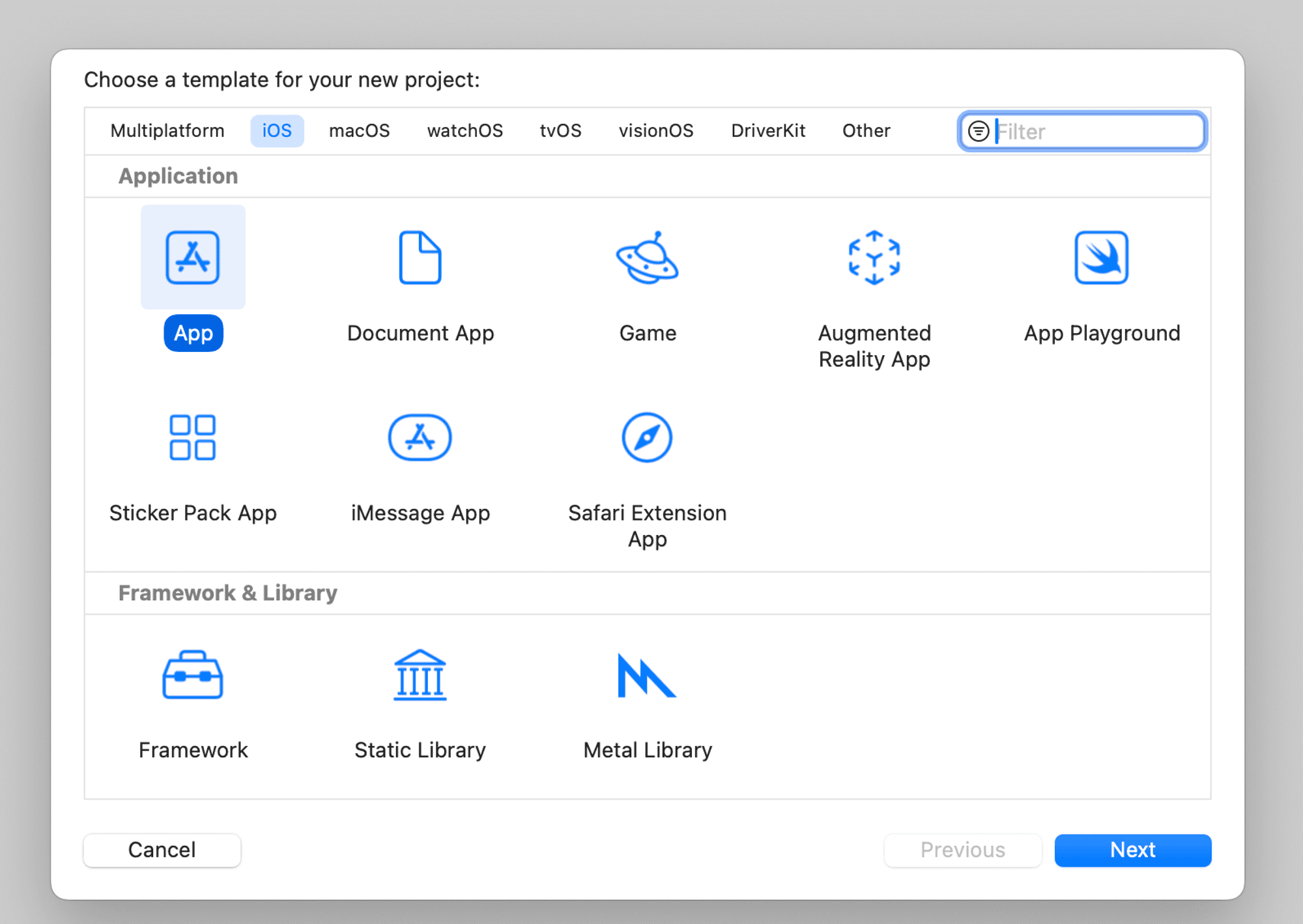
Step 1: Create a new project
Please follow the detailed instructions to Create a new Xcode project and add your organization’s identifier.
Step 2: Unzip the dependencies file
- Unzip the
MobileCredentialHolderSDK-*version*.xcframework.zipfile. - Drag the
MobileCredentialHolderSDK-*version*.xcframeworkfolder into your project. - Configure
MobileCredentialHolderSDK.xcframeworkto Embed & sign.
See Add existing files and folders for detailed instructions.
This should result in the the following framework being added to your project:

Step 3: Configure required resources
-
Create a new file named
Constants.swiftwithin your project. -
Add the following string resources to represent the Authentication provider you will use for this tutorial:
Constants.swift enum Constants { static let redirectUri: String = "io.mattrlabs.sample.mobilecredentialholderapp://credentials/callback" static let clientId: String = "ios-sample-mobile-credential-holder-app" }redirectUri: This is the path the SDK will redirect to once the user completes Authentication with the issuer. Our best practice recommendation is to configure this to be{redirect.scheme}://credentials/callbackas shown in the example above. However, it can be any path as long as it is handled by your application and registered with the issuer against the correspondingclientId.clientId: This is the identifier that is used by the issuer to recognize the wallet application. This is only used internally in the interaction between the wallet and the issuer and can be any string as long as it is registered with the issuer as a trusted wallet application.
Both of these parameters are only used in the Authorization Code flow and must be registered as a key pair as part of the issuer's OID4VCI workflow configuration. In this tutorial you will be claiming a credential from a MATTR Labs issuer which is configured with the parameters detailed above. We will help you configure your unique values as you move your implementation into production.
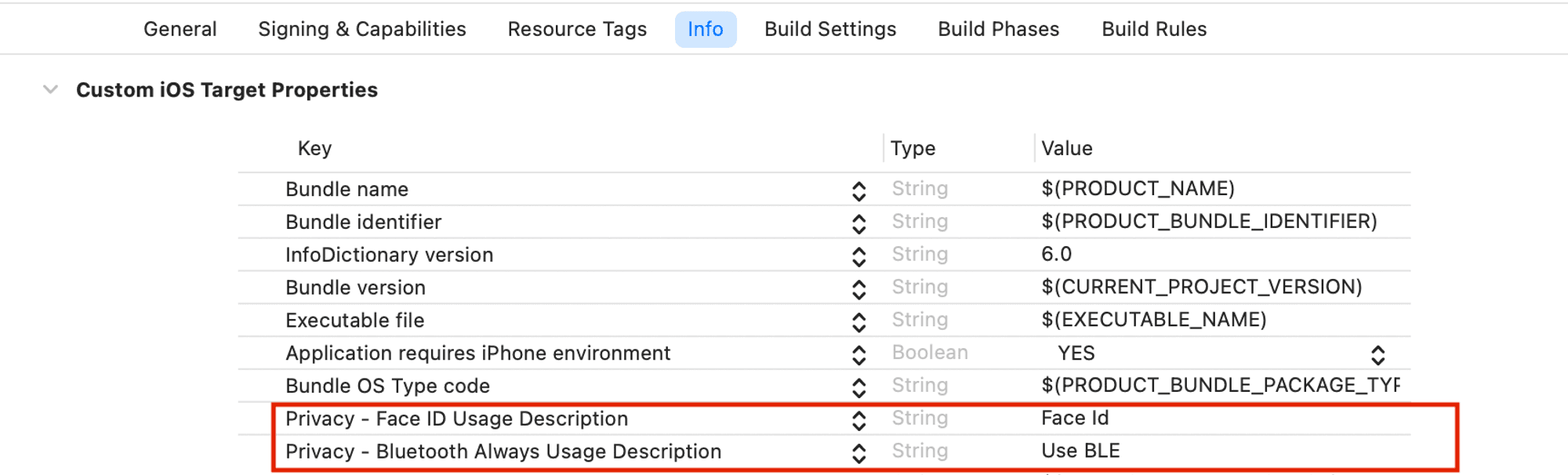
Step 4: Add Bluetooth and biometric permissions
The SDK requires access to the mobile device Bluetooth and biometric capabilities for the different
workflows built in this tutorial.
Configure these permissions in the Info
tab of the Application target:
Step 5: Run the application
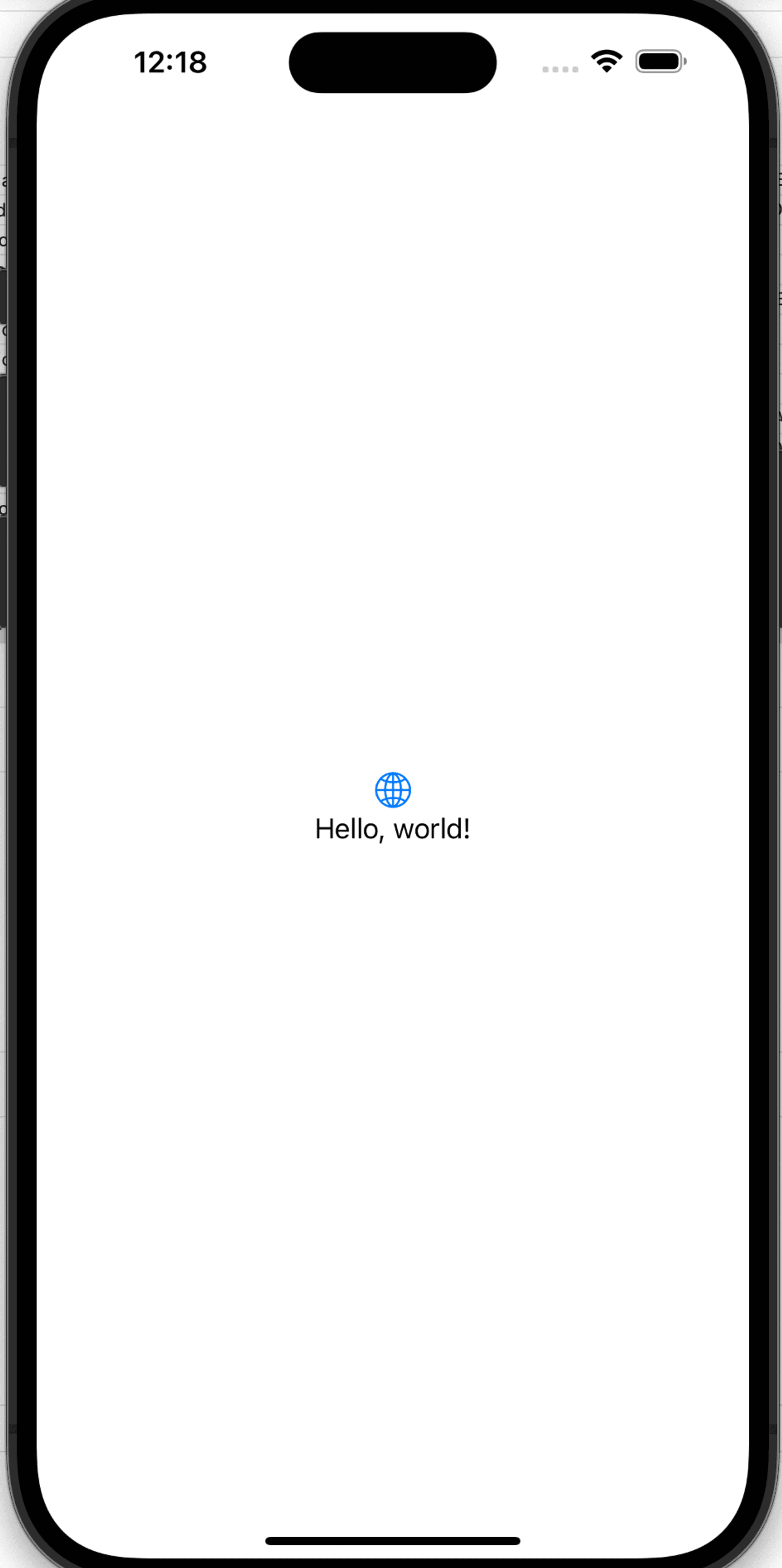
Select Run and make sure the application launches with a “Hello, world!” text in the middle of the display, as shown in the following image:
Nice work, your application is now all set to begin using the SDK!
Tutorial steps
In this part of the tutorial you will build the capabilities for the user to interact with an OID4VCI credential offer and claim an mDoc.
To achieve this, you will break this capability down into the following steps:
- Initialize the SDK.
- Interact with a Credential offer.
- Retrieve offer details and present them to the Holder.
- Obtain user consent and initiate Credential issuance.
Step 1: Initialize the SDK
The first capability you will build into your app is to initialize the SDK so that your app can use
SDK methods and classes. To achieve this, you need to import the MobilecredentialHolderSDK
framework and then initialize the MobileCredentialHolder class:
- Open the
ContentViewclass in your new app project and replace any existing code with the following:
import SwiftUI
// Claim Credential - Step 1.2: Import MobileCredentialHolderSDK

struct ContentView: View {
   @State var viewModel: ViewModel = ViewModel()
   var body: some View {
       NavigationStack(path: $viewModel.navigationPath) {
           VStack {
               Button("Claim Credential") {
                   viewModel.navigationPath.append(NavigationState.qrScan)

               }
               .padding()
               createQRCodeButton
               if viewModel.shouldDisplayOnlinePresentation {
                   Button("View Online Presentation Session") {
                       viewModel.navigationPath.append(NavigationState.onlinePresentation)
                   }
                   .padding()

               }
               Spacer()
           }
           .padding()
           .navigationDestination(for: NavigationState.self) { destination in
               switch destination {
               case .qrScan:
                   codeScannerView
               case .credentialOffer:
                   credentialOfferView
               case .transactionCodeInput:
                   transactionCodeInputView
               case .retrievedCredentials:
                   retrievedCredentialsView
               case .onlinePresentation:
                   // Online Presentation - Step 3.3: Display online presentation view
                   EmptyView()
               case .presentCredentials:
                   qrCodeView
               case .proximityPresentation:
                   // Proximity Presentation - Step 2.5: Display proximity presentation view
                   EmptyView()
               }
           }
           // Online Presentation - Step 2.4: Create session from request URI
       }
       // Claim Credential - Step 1.4: Initialize the SDK when the view appears
       .task {
           await viewModel.initialize()
       }
   }

   // MARK: - Credential Retrieval Views

   var codeScannerView: some View {
       // Claim Credential - Step 2.4 Create QRScannerView
       EmptyView()
   }

   var credentialOfferView: some View {
       // Claim Credential - Step 3.5: Display Credential offer
       EmptyView()
   }

   var transactionCodeInputView: some View {
       // Claim Credential - Step: 3.4 Display transaction code input view.
       EmptyView()
   }


   var retrievedCredentialsView: some View {
       // Claim Credential - Step 4.4: Display retrieved credentials
       EmptyView()
   }

   // MARK: - Proximity Presentation Views

   var createQRCodeButton: some View {
       // Proximity Presentation - Step 1.5: Add button to generate QR code
       EmptyView()
   }

   func generateQRCode(data: Data) -> Data? {
       // Proximity Presentation - Step 1.6: Generate QR code
       return nil
   }

   var qrCodeView: some View {
       // Proximity Presentation - Step 1.7: Create QR code view
       EmptyView()
   }
}

@Observable class ViewModel {
   var navigationPath = NavigationPath()
   // Claim Credential - Step 1.3: Add MobileCredentialHolder var

   // Claim Credential - Step 3.1: Add DiscoveredCredentialOffer and discoveredCredentialOfferURL vars

   // Claim Credential - Step 4.1: Add retrievedCredentials var


   // Proximity Presentation - Step 1.2: Create deviceEngagementString and proximityPresentationSession variables


   // Proximity and Online Presentation: Create variables for credential presentations


   // Online Presentation - Step 2.1: Create a variable to hold the online presentation session object


   var shouldDisplayOnlinePresentation: Bool {
       // Online Presentation - Step 3.4: View Online Presentation
       return false
   }

   // Claim Credential - Step 1.4: Initialize MobileCredentialHolder SDK

   @MainActor
   func getCredential(id: String) {
       // Proximity and Online Presentation: Retrieve a credential from storage
       print("This method will get a credential from storage and update the viewModel")
   }
}

// MARK: - Credential Retrieval

extension ViewModel {
   @MainActor
   func discoverCredentialOffer(_ offer: String) {
       // Claim Credential - Step 3.2: Add discover credential offer logic
       print("This method will discover a credentials offer and update viewModel")
   }

   @MainActor
   func retrieveCredential(transactionCode: String?) {
       // Claim Credential - Step 4.2: Call retrieveCredential method
       print("This method will save a credential from offer and store it in the application's storage ")
   }
}

// MARK: - Online Presentation

extension ViewModel {
   @MainActor
   func createOnlinePresentationSession(authorizationRequestURI: String) async {
       // Online Presentation - Step 2.3: Create online presentation session
       print("This method will create an online presentation session and update viewModel")
   }

   @MainActor
   func sendOnlinePresentationSessionResponse(id: String) {
       // Online Presentation - Step 4.1: Send online presentation response
       print("This method will be passed to a view and send a response with selected credentials")
   }
}

// MARK: - Proximity Presentation

extension ViewModel {
   func createDeviceEngagementString() {
       // Proximity Presentation - Step 1.3: Create function to create a proximity presentation session and generate QR code
       print("This method will create a device engagement string that will be converted to a QR code")
   }

   // Proximity Presentation - Step 1.4: Update function signature
   func onRequestReceived() {
       // Proximity Presentation - Step 2.2: Store credential requests and matched credentials
       print("The signature of this method will need to be updated to include the correct parameters")
       print("This is a method that will be called when a proximity presentation request is received")
   }

   @MainActor
   func sendProximityPresentationResponse(id: String) {
       // Proximity Presentation - Step 3.1: Send a credential response
       print("This method will be passed to a view and send a response with selected credentials")

   }
}

// MARK: - Navigation

enum NavigationState: Hashable {
   case qrScan
   case credentialOffer
   case transactionCodeInput
   case retrievedCredentials
   case onlinePresentation
   case presentCredentials
   case proximityPresentation
}
This will serve as the basic structure for your application for this and the future tutorials.
We will copy and paste different
code snippets into specific locations to achieve the different functionalities.
These locations are indicated by comments that reference both the section and the step (e.g.
// Claim Credential - Step 1.2: Import MobileCredentialHolderSDK).
We recommend copying and pasting the comment text to easily locate it in the code.
-
Add the following code after the
// Claim Credential - Step 1.2: Import MobileCredentialHolderSDKcomment to importMobileCredentialHolderSDKand enable using its capabilities in your application:ContentView import MobileCredentialHolderSDK -
Add the following code after the
// Claim Credential - Step 1.3: Add MobileCredentialHolder varcomment to create a variable that holds themobileCredentialHolderinstance:ContentView var mobileCredentialHolder: MobileCredentialHolder -
Add the following code after the
// Claim Credential - Step 1.4: Initialize MobileCredentialHolder SDKcomment. As of iOS Holder SDK v6.0.0,initializeis asynchronous, so we keep theinit()synchronous (assigning the shared instance only) and perform initialization in anasyncmethod. We call this method from a.taskmodifier on the view in the next step, so it runs once when the view appears:ContentView init() { mobileCredentialHolder = MobileCredentialHolder.shared } @MainActor func initialize() async { do { try await mobileCredentialHolder.initialize( userAuthenticationConfiguration: UserAuthenticationConfiguration(userAuthenticationBehavior: .onDeviceKeyAccess), credentialIssuanceConfiguration: CredentialIssuanceConfiguration( redirectUri: Constants.redirectUri, autoTrustMobileCredentialIaca: true ) ) } catch { print(error) } }Let's review the parameters that are passed into
initialize:
userAuthenticationConfiguration: Defines when is user authentication required. In this example, authentication will only be required when a credential is issued and/or presented. Refer to the SDK Docs to see all options.CredentialIssuanceConfiguration:redirectUri: This is the URI that the SDK uses to redirect the user back to your wallet application after authentication is complete. It must match the value you configured earlier in the development environment setup. This value is only used and required in the Authorization Code flow.autoTrustMobileCredentialIaca: Controls how the SDK handles issuer IACA certificates during credential issuance.- If set to
true, the SDK will automatically download and trust the issuer’s IACA certificate(s) when claiming a credential. This allows credentials to be claimed from any issuer. - If set to
false, the SDK will only accept credentials from issuers whose IACA certificates have already been manually added to the SDK’s trusted issuers list (see addTrustedIssuerCertificates). This requires the application to manually manage IACA certificates.
- If set to
- Run the app to make sure it compiles properly.
Step 2: Interact with a Credential offer

Users can receive OID4VCI Credential offers as deep-links or QR codes. In this tutorial you will use a MATTR Labs OID4VCI Credential offer rendered as a QR code.
Creating your own Credential offer is not within the scope of the current tutorial. You can follow the OID4VCI guide that will walk you through creating one.
Your application needs to let users interact with Credential offers. Since this tutorial uses a QR code to deliver the offer, your application must be able to scan and process QR codes.
For ease of implementation, you will use a third party framework to achieve this:
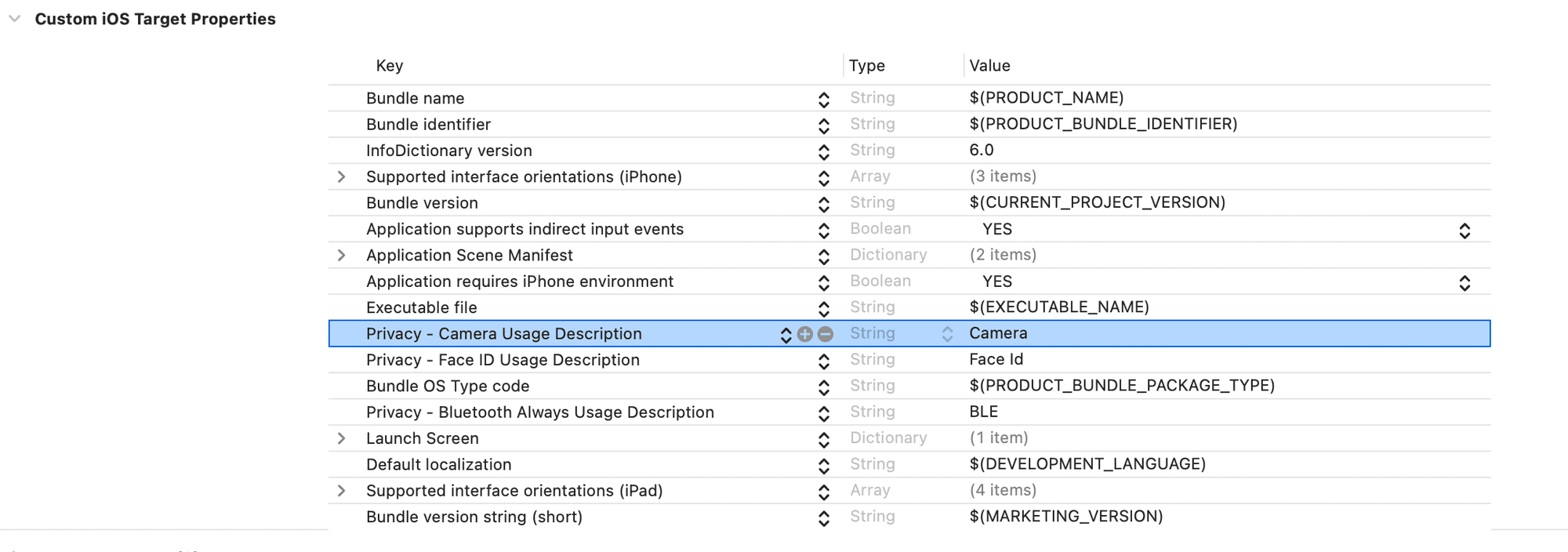
- Add camera usage permissions to the app target:
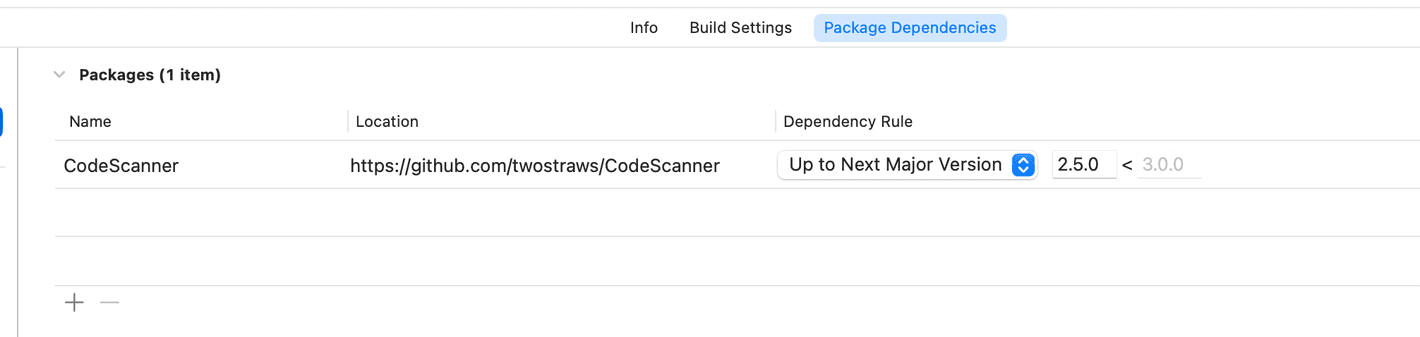
- Add the CodeScanner library via Swift Package Manager.
-
Create a new swift file named
QRScannerViewand add the following code into it to implement the QR scanning capability:QRScannerView import SwiftUI import CodeScanner import AVFoundation struct QRScannerView: View { private let completionHandler: (String) -> Void init(completion: @escaping (String) -> Void) { completionHandler = completion } var body: some View { CodeScannerView(codeTypes: [.qr]) { result in switch result { case .failure(let error): print(error.localizedDescription) case .success(let result): print(result.string) completionHandler(result.string) } } } } -
Return to the
ContentViewfile and replace theEmptyView()under the// Claim Credential - Step 2.4 Create QRScannerViewcomment with the following code to create a newQRScannerViewview in the application for scanning QR codes:ContentView QRScannerView( completion: { credentialOffer in viewModel.discoverCredentialOffer(credentialOffer) } ) -
Run the app and tap the Claim Credential button. When prompted, grant camera access to allow QR code scanning.
You should see a result similar to the following:
As the user selects the Claim Credential button, the app launches the device camera to enable the user to scan a QR code.
You might notice that nothing happens after scanning a QR code - this is expected. In the next step you will implement the logic that retrieves the credential offer details from the QR code and presents them to the user.
Step 3: Retrieve offer details and present them to the user

Next, you'll add the ability to display the details of the Credential offer to the user before they decide to claim any credentials. This process, known as credential discovery, allows your wallet application to retrieve and present the offer details, including:
- What Issuer is offering the credentials?
- What credentials are being offered, in what format and what claims do they include?
To display this information to the user, your application should call the SDK's
discoverCredentialOffer
method. We are going to implement this within the ViewModel class.
-
Add the following code under the
// Claim Credential - Step 3.1: Add DiscoveredCredentialOffer and discoveredCredentialOfferURL varscomment to add new variables that will hold the credential offer details:ContentView var discoveredCredentialOffer: DiscoveredCredentialOffer? var discoveredCredentialOfferURL = "" -
Replace the
printstatement under the// Claim Credential - Step 3.2: Add discover credential offer logiccomment with the following code to create a function that calls the SDK'sdiscoverCredentialOffermethod:ContentView Task { do { discoveredCredentialOffer = try await mobileCredentialHolder.discoverCredentialOffer(offer) // save the url to use for credential retrieval discoveredCredentialOfferURL = offer // present credential offer screen, as soon as credential offer is discovered navigationPath.append(NavigationState.credentialOffer) } catch { print(error) } }This function is called from our
QRScannerViewcallback, so that when the user scans a QR Code that includes a credential offer, thediscoverCredentialOffermethod is called and accepts the returnedcredentialOfferstring as itsofferparameter.This is a URL-encoded Credential offer which in our example is embedded in a QR code. In other implementations you might have to retrieve this parameter from a deep-link.
The
discoverCredentialOffermethod makes a request to theofferURL to retrieve the offer details and returns it as aDiscoveredCredentialOfferobject:Swift struct DiscoveredCredentialOffer { let issuer: URL let credentials: [OfferedCredential] let transactionCode: TransactionCode? }The application can now use the
issuerandcredentialsproperties and present this information for the user to review. Once an application has discovered a credential offer, the user is navigated to thecredentialOfferViewview, which you are going to implement next.Next you will use the
transactionCodeproperty to inspect whether or not the issuer requires a transaction code to claim the credential. This will enable the app to handle offers with and without a transaction code. -
Create a new file named
transactionCodeInputViewand paste the following code to create a view that allows the user to input a transaction code when it is required by the issuer:transactionCodeInputView import SwiftUI struct TransactionCodeInputView: View { var viewModel: ViewModel @State private var transactionCode = "" @Environment(\.dismiss) private var dismiss var body: some View { VStack(spacing: 20) { Text("Transaction Code Required") .font(.title2) .fontWeight(.bold) Text("Please enter the transaction code to proceed with credential retrieval.") .multilineTextAlignment(.center) .foregroundColor(.secondary) TextField("Enter transaction code", text: $transactionCode) .textFieldStyle(RoundedBorderTextFieldStyle()) .padding(.horizontal) HStack(spacing: 20) { Button("Cancel") { dismiss() } .buttonStyle(.bordered) Button("Retrieve Credentials") { viewModel.retrieveCredential(transactionCode: transactionCode) } .buttonStyle(.borderedProminent) .disabled(transactionCode.isEmpty) } Spacer() } .padding() .navigationTitle("Transaction Code") .navigationBarBackButtonHidden(false) } }The application will only show this view when the credential offer indicates a transaction code is required. The user will then be able to input a transaction code they had received separately from the issuer.
-
Return to
ContentViewfile and replace theEmptyViewunder the// Claim Credential - Step: 3.4 Display transaction code input viewcomment with the following code to make use of the new view:Swift TransactionCodeInputView(viewModel: viewModel) -
Replace the
EmptyViewunder the// Claim Credential - Step 3.5: Display Credential offercomment with the following code to navigate the user to thecredentialOfferViewview when a credential offer is discovered:ContentView VStack { Text("Received \(viewModel.discoveredCredentialOffer?.credentials.count ?? 0) Credential Offer(s)") .font(.headline) Text("from \(viewModel.discoveredCredentialOffer?.issuer.absoluteString ?? "unknown issuer")") .font(.subheadline) List(viewModel.discoveredCredentialOffer?.credentials ?? [], id: \.docType) { credential in Section { HStack { Text("Name:") .bold() Spacer() Text("\(credential.name ?? "")") } HStack { Text("Doctype:") .bold() Spacer() Text("\(credential.docType)") } HStack { Text("No. of claims:") .bold() Spacer() Text("\(credential.claims?.count ?? 0)") } } } Button { if viewModel.discoveredCredentialOffer?.transactionCode != nil { viewModel.navigationPath.append(NavigationState.transactionCodeInput) return } viewModel.retrieveCredential(transactionCode: nil) } label: { Text("Consent and retrieve Credential(s)") .font(.title3) } .buttonStyle(.borderedProminent) .clipShape(Capsule()) }The app now handles selection of the Consent and retrieve Credential(s) button based on the retrieved offer details:
- For Pre-authorized Code offers:
- If a transaction code is required, it will navigate the user to the
TransactionCodeInputViewview. - If no transaction code is required, it will call
viewModel.retrieveCredential(transactionCode: nil)to retrieve the credential.
- If a transaction code is required, it will navigate the user to the
- For Authorization Code offers:
- The SDK will automatically redirect the user to a web browser to authenticate with issuer before continuing to retrieve the credential.
- For Pre-authorized Code offers:
-
Run the app, select the Claim Credential button and scan the following QR code:

You should see a result similar to the following:
As the user scans the QR code, the application displays the credential offer details.
You might notice that nothing happens if you select the Consent and retrieve Credential(s) button. This is expected - in the next step you will implement the logic that initiates the credential issuance once the user provides their consent.
Step 4: Obtain user consent and initiate credential issuance

The next (and final!) step is to build the capability for the user to accept the credential offer. This should then trigger issuing the credential and storing it in the application storage.
Once the user provides their consent by selecting the Consent and retrieve Credential(s) button,
your application must call the SDK's
retrieveCredentials
function to trigger the credential issuance and store the issued credential in the application
storage.
- For Pre-authorized Code offers, this will happen within the application and after the user provided a transaction code (when required by the issuer).
- For Authorization Code offers, this will happen after the user had completed authentication with the issuer and was redirected back to the application.
-
Add the following code under the
// Claim Credential - Step 4.1: Add retrievedCredentials varcomment to add a new variable that will hold the result returned by the SDK'sretrieveCredentialsmethod:ContentView var retrievedCredentials: [MobileCredential] = [] -
Replace the
printstatement under the// Claim Credential - Step 4.2: Call retrieveCredential methodcomment with the following code to create a new function that will call the SDK'sretrieveCredentialsmethod:ContentView Task { do { let retrievedCredentialResults = try await mobileCredentialHolder.retrieveCredentials( credentialOffer: discoveredCredentialOfferURL, clientId: Constants.clientId, transactionCode: transactionCode ) Task { var credentials: [MobileCredential] = [] for result in retrievedCredentialResults { switch result { case .success(_, let credentialId): if let credential = try? await mobileCredentialHolder.getCredential(credentialId: credentialId) { credentials.append(credential) } case .failure(let docType, let error): print("Failed to retrieve \(docType): \(error)") } } self.retrievedCredentials = credentials // Clear navigation stack and display retrievedCredentials view navigationPath = NavigationPath() navigationPath.append(NavigationState.retrievedCredentials) } } catch { print(error.localizedDescription) } }
Let’s review the parameters passed to the retrieveCredentials function:
credentialOffer: This is the same credential offer string from the QR Code that we used to calldiscoverCredentialOfferwith.clientId: This was configured when setting up your development environment. It is used by the issuer to identify the wallet application that is making a request to claim credentials.transactionCode: This is only required for Pre-authorized Code credential offers. If your application is only using Authorization Code flows offers, you should set it tonil.
The
retrieveCredentials
function returns an array of
RetrieveCredentialResult
objects. Each object contains metadata about a credential that was retrieved:
enum RetrieveCredentialResult {
    case success(docType: String, credentialId: String)
    case failure(docType: String, error: RetrieveCredentialError)
}

[
   {
      "docType":"org.iso.18013.5.1.mDL",
      "credentialId":"F52084CF-8270-4577-8EDD-23149639D985"
   }
]
RetrieveCredentialResult is an enum with two cases, each carrying guaranteed values:
.success: Carries thedocTypeand thecredentialId(the internally unique identifier) of a successfully retrieved credential..failure: Carries thedocTypeand theerrordescribing why retrieval failed.
After the result is received, your application can retrieve specific credentials by calling the
SDK's
getCredential
method with the credentialId of any retrieved credential.
The SDK's
getCredential
method returns a
MobileCredential
object which can be used to display the retrieved credential, its claims and verification status to
the user.
Since this object can be used across multiple views, it will make sense to create one view that will represent it. We will use this view in both the Proximity and Online presentation tutorials.
-
Create a new file named
DocumentViewand add the following content:DocumentView import MobileCredentialHolderSDK import SwiftUI struct DocumentView: View { var viewModel: DocumentViewModel var body: some View { VStack(alignment: .leading, spacing: 10) { Text(viewModel.docType) .font(.title) .fontWeight(.bold) .padding(.bottom, 5) ForEach(viewModel.namespacesAndClaims.keys.sorted(), id: \.self) { key in VStack(alignment: .leading, spacing: 5) { Text(key) .font(.headline) .padding(.vertical, 5) .padding(.horizontal, 10) .background(Color.gray.opacity(0.2)) .cornerRadius(5) ForEach(viewModel.namespacesAndClaims[key]!.keys.sorted(), id: \.self) { claim in HStack { Text(claim) .fontWeight(.semibold) Spacer() Text(viewModel.namespacesAndClaims[key]![claim]! ?? "") .fontWeight(.regular) } .padding(.vertical, 5) .padding(.horizontal, 10) .background(Color.white) .cornerRadius(5) .shadow(radius: 1) } } .padding(.vertical, 5) } } .padding() .background(RoundedRectangle(cornerRadius: 10).fill(Color.white).shadow(radius: 5)) .padding(.horizontal) } } // MARK: DocumentViewModel class DocumentViewModel { var docType: String var namespacesAndClaims: [String: [String: String?]] init(from credential: MobileCredential) { self.docType = credential.docType self.namespacesAndClaims = credential.claims.reduce(into: [String: [String: String]]()) { result, outerElement in let (outerKey, innerDict) = outerElement result[outerKey] = innerDict.mapValues { $0.textRepresentation } } } init(from credentialMetadata: MobileCredentialMetadata) { self.docType = credentialMetadata.docType var result: [String: [String: String?]] = [:] credentialMetadata.claims.forEach { namespace, claimIDs in var transformedClaims: [String: String?] = [:] claimIDs.forEach { claimID in transformedClaims[claimID] = Optional<String>.none } result[namespace] = transformedClaims } self.namespacesAndClaims = result } init(from request: MobileCredentialRequest) { self.docType = request.docType self.namespacesAndClaims = request.namespaces.reduce(into: [String: [String: String?]]()) { result, outerElement in let (outerKey, innerDict) = outerElement result[outerKey] = innerDict.mapValues { _ in nil } } } } // MARK: Helper extension MobileCredentialElementValue { var textRepresentation: String { switch self { case .bool(let bool): return "\(bool)" case .string(let string): return string case .int(let int): return "\(int)" case .unsigned(let uInt): return "\(uInt)" case .float(let float): return "\(float)" case .double(let double): return "\(double)" case let .date(date): let dateFormatter = DateFormatter() dateFormatter.dateStyle = .short dateFormatter.timeStyle = .none return dateFormatter.string(from: date) case let .dateTime(date): let dateFormatter = DateFormatter() dateFormatter.dateStyle = .short dateFormatter.timeStyle = .short return dateFormatter.string(from: date) case .data(let data): return "Data \(data.count) bytes" case .map(let dictionary): let result = dictionary.mapValues { value in value.textRepresentation } return "\(result)" case .array(let array): return array.reduce("") { partialResult, element in partialResult + element.textRepresentation } .appending("") @unknown default: return "Unknown type" } } }The file comprises the following components:
DocumentViewModel: This class stores the credentials' docType and claim values.DocumentView: This view takesDocumentViewModelas a parameter and displays its content in a human-readable format.MobileCredentialElementValue: This helper extension allows retrieving aMobileCredentialElementValuefrom aMobileCredential'sclaimsand present it in a human-readable format.
-
Return to
ContentViewand replaceEmptyViewunder the// Claim Credential - Step 4.4: Display retrieved credentialscomment with the following code to use theDocumentViewstructure to display retrieved credentials to the user:ContentView ScrollView { VStack { Text("Retrieved Credentials") .font(.title) ForEach(viewModel.retrievedCredentials, id: \.id) { credential in DocumentView(viewModel: DocumentViewModel(from: credential)) } } }
Once the app calls the retrieveCredentials function, the SDK processes the response based on the
type of credential offer retrieved:
- In the Authorization Code flow:
- The user is redirected to
authenticate
with the configured Authentication provider defined in the
authorizeEndpointelement of theDiscoveredCredentialOfferobject. - Upon successful authentication, the user can proceed to complete the
OID4VCI workflow configured by the issuer. This workflow can include
different steps based on the issuer’s configuration, but eventually the user is redirected to
the configured
redirectUriwhich should be handled by your application.
- The user is redirected to
authenticate
with the configured Authentication provider defined in the
- In the Pre-authorized Code flow the user is not redirected out of the application, but rather provides a transaction code (when required by the issuer) and the immediately proceeds to claiming the credential. If no transaction code is required, the user can claim the credential immediately after selecting the Consent and retrieve Credential(s) button.
The issuer then sends the issued mDocs to your application, and the SDK processes and validates them against the ISO/IEC 18013-5:2021 standard. Credentials who meet validation rules are stored in the application internal data storage.
Let's test the end-to-end flow of claiming a credential using the application you had just built.
Step 5: Test the application
Authorization code flow
- Run the application.
- Select the Claim Credential button.
- Scan the following QR code:
- Select the Consent and retrieve Credential(s) button and follow any on-screen instructions to claim the credential.
You should see a result similar to the following:
As the user scans the QR code, the wallet retrieves and displays the offer details. The user then provides consent to retrieving the credentials, and the wallet responds by initiating the issuance workflow and displaying the retrieved credentials to the user.
This tutorial uses a demo MATTR Labs Credential offer to issue the credential. This offer uses a workflow that doesn't actually authenticate the user before issuing a credential, but redirects them to select the credential they wish to issue. In production implementations this must be replaced by a proper Authentication provider to comply with the ISO/IEC 18013-5:2021 standard and the OID4VCI specification.

Pre-authorized Code flow
Let's test the end-to-end flow of claiming a credential using the Pre-authorized Code flow:
- Open the MATTR Labs Issue Credentials tool.
- Turn on the Transaction Code option for the tool to generate a transaction code.
- Select the Generate Credential Offer button.
A QR code will be generated and rendered on the screen, along with a transaction code. - Run your application.
- Select the Claim Credential button.
- Scan the QR code.
- Enter the transaction code retrieved from the MATTR Labs tool.
- Select the Consent and retrieve Credential(s) button.
In production implementations, the transaction code is generated by the issuer and shared with the intended holder by a separate secure channel. In this tutorial, the transaction code is generated by the MATTR Labs tool and displayed on the screen for demonstration purposes and to simplify testing.
Congratulations! Your application can now interact with an OID4VCI Credential offer to claim mDocs!
Summary
You have just used the mDocs Holder SDKs to build an application that can claim an mDoc issued via OID4VCI, supporting both the Authorization Code and Pre-authorized Code flows:
This was achieved by building the following capabilities into the application:
- Initialize the SDK so the application can use its functions and classes.
- Interact with a Credential offer formatted as a QR code.
- Retrieve the offer details and present them to the user.
- Obtain user consent and initiate the credential issuance workflow.
Credential reference and bundle identifiers
Each credential your application claims can carry two identifiers from the issuer. They help your application tell credentials apart and replace them when the issuer updates them. The example below follows a parent, Alex, who keeps birth certificates for their children in the wallet.
credentialReferenceId: Identifies "this credential for this user", such as Alex's copy of their child Sam's birth certificate. It stays the same when the issuer updates the credential. When a newly claimed credential has the samecredentialReferenceIdas one already stored, it is a newer copy, so you can delete the older one.credentialBundleId: Identifies this credential as it sits in this wallet. The issuer uses it to send an update to this specific wallet.
Both are available on MobileCredential and MobileCredentialMetadata from iOS Holder SDK
6.2.0, Android Holder SDK 7.2.0 and React Native Holder SDK 10.1.0. They are optional, and are only present when the issuer returns them. MATTR VII returns them when
Credential Update is enabled for the issuer's tenant.
The same SDK versions also support claim sets, where one
offer issues several credentials of the same type, such as a birth certificate for each of
Alex's children. retrieveCredentials then returns one result per issued credential, so its
results can outnumber the credentials listed in the offer. The code in this tutorial already
handles this, because it processes every result that retrieveCredentials returns.
What's next?
- You can build additional capabilities into your new application:
- Present a claimed mDoc for verification via an online presentation workflow into your new application.
- Present a claimed mDoc for verification via a proximity presentation workflow.
- You can check out the SDKs reference documentation for more details on the available functions and classes:
How would you rate this page?
Last updated on