
Android app signing
When registering an Android holder application with your MATTR VII tenant for the SDK Backend, you need to provide the packageSigningCertificateThumbprints property. This ensures that only your trusted application can interact with the tenant.
The Holder SDK uses this configuration to establish a trusted relationship between your Android app and the MATTR VII platform. Without a valid signing certificate thumbprint, the tenant will reject requests from your application — preventing untrusted or modified apps from claiming credentials or performing other holder operations.
Every Android app must be signed with a certificate before it can be installed. This signing certificate identifies the developer or organization responsible for the app and is used by Android to verify authenticity and integrity.
The package signing certificate thumbprint acts as a unique cryptographic identifier for your app's signing key. By verifying this thumbprint, the MATTR VII tenant can confirm that incoming requests originate from a trusted and unmodified app.
The purpose of this page is to explain how to obtain the signing certificate thumbprint for your Android app.
What is a Package Signing Certificate Thumbprint?
A package signing certificate thumbprint is the hex-encoded SHA-256 hash of your app's signing certificate (the X.509 certificate bytes). It uniquely identifies the certificate used to sign your app and remains the same across app updates as long as the signing certificate does not change.
Obtaining the Thumbprint
Production builds
When your app is ready for release, the thumbprint you configure must match the signing certificate used for your production build.
Obtaining the thumbprint differs based on how you manage your signing keys - via Google Play App Signing or manually.
Google Play App Signing
If your app uses Play App Signing, Google manages your app's signing key. You can find the SHA-256 fingerprint in the Google Play Console:
- Go to Google Play Console > Setup > App Signing.
- Locate the SHA-256 fingerprint under App Signing Key Certificate.
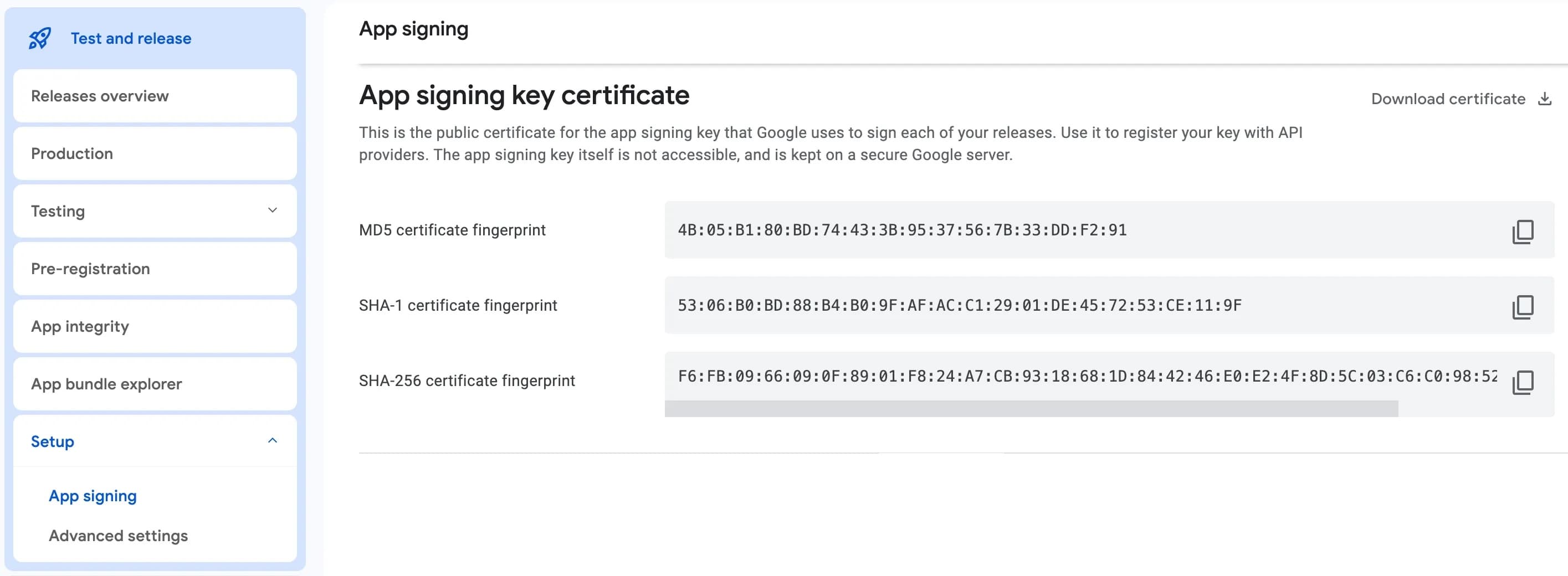
- Copy the SHA-256 value.
- Remove all
:characters and convert the string to lowercase.
const fingerprint = '91:F7:CB:F9:D6:81:53:1B:C7:A5:8F:B8:33:CC:A1:4D:AB:ED:E5:09:C5:12:34:56:78:9A:BC:DE:F0:12:34:56:78';
// Remove colons and convert to lowercase
const sha256Hex = fingerprint.replaceAll(":", "").toLowerCase();
console.log(sha256Hex)- Upload the processed value as your
packageSigningCertificateThumbprintsconfiguration.
For more information, refer to Google's documentation on Play App Signing Overview and Manage App Signing Keys in Google Play Console.
Manual signing (CLI)
- Retrieve the SHA-256 fingerprint using the
keytoolcommand for the specific signing key alias:
keytool -list -v -keystore <path-to-your-keystore> -alias <your-key-alias>- Copy the SHA-256 value.
- Remove all
:characters and convert the string to lowercase.
const fingerprint = '91:F7:CB:F9:D6:81:53:1B:C7:A5:8F:B8:33:CC:A1:4D:AB:ED:E5:09:C5:12:34:56:78:9A:BC:DE:F0:12:34:56:78:9A:BC:DE:F0:12:34:56:78:9A:BC:DE:F0:12:34:56:78:9A:BC:DE:F0';
const sha256Hex = fingerprint.replaceAll(":", "").toLowerCase();
console.log(sha256Hex)- Upload the processed value as your
packageSigningCertificateThumbprintsconfiguration.
Local builds (Debug)
- Extract the signing certificate information directly from the
.apkfile using the apksigner tool:
apksigner verify --print-certs path/to/your-debug-apk.apkSigner #1 certificate DN: C=US, O=Android, CN=Android Debug
Signer #1 certificate SHA-256 digest: f59105881315e61502274a499d6efc2d7cc71c5cae266e598290d36b59221f6d
Signer #1 certificate SHA-1 digest: ca09773016ef4db66344ce0dac2827429ea875f1
Signer #1 certificate MD5 digest: c59905769e42c09530898c6dc413258f- Copy the SHA-256 digest and upload it as your
packageSigningCertificateThumbprintsconfiguration.
The default debug keystore is usually located at: $HOME/.android/debug.keystore.
For more details, refer to Android Debug Signing.
Best practices
- If your app's signing key changes, you'll need to update your application configuration.
- Consider removing old thumbprints if you wish to invalidate older app versions — for example, after a key rotation or potential compromise.
- For development and testing, you can use the debug signing certificate thumbprint, but ensure to switch to the release signing certificate for production builds.
- Always keep your signing keys secure and avoid sharing them publicly.
How would you rate this page?
Last updated on