
Integrating mDocs revocation into your workflow
Overview
This guide walks you through integrating mDocs revocation into your issuance workflow. It covers the end-to-end process of issuing revocable credentials, tracking them, and revoking them when needed.
Prerequisites
- An active MATTR VII tenant. If you don't have one, complete the sign up form and create a tenant.
- Familiarity with the Revocation overview, which explains the underlying concepts such as status lists, status values, and status list tokens.
- Familiarity with at least one OID4VCI issuance flow:
User journey
The following diagram illustrates the revocation journey for issuers, holders, and verifiers:
- Issue a revocable credential: The issuer's backend system creates a credential offer in
MATTR VII for an existing database record and stores the correlation data. The backend shares the
offer with the holder, who claims it. MATTR VII issues the credential with its status tracked in
a publicly available status list, and sends a webhook with the
credentialIdback to the issuer's backend, which stores it against the database record. - Database record changes: The issuer's backend system detects a change in the database record that requires revoking the associated credential (such as a permit expiration or license suspension).
- Revoke the credential: The issuer's backend retrieves the stored
credentialIdfrom the database record and calls MATTR VII to update the credential status toinvalid. MATTR VII updates the status list. - Holder checks credential status: When the holder's wallet checks the credential status with MATTR VII, it receives the updated status showing the credential is revoked.
- Verifier checks credential status: When a verifier checks the revoked credential, MATTR VII reports the revoked status, verification fails, and the verifier is informed of the revocation.
Integrating revocation into your workflow
Integrating revocation into your workflow involves three main steps:
- Enable revocation in your credential configuration to ensure issued credentials are tracked in a status list.
- Track issued credentials by capturing their
credentialIdthrough webhooks or API queries. - Revoke credentials when necessary by updating their status to
invalid.
Step 1: Enable revocation in your credential configuration
Issued mDocs are not revocable by default. To issue revocable mDocs, you must manually adjust the credential configuration so that every credential issued with this configuration will be added to a status list, enabling you to change its status at a later date.
Enabling revocation does not affect the issuance workflow or how the credential appears to
the holder. The only difference is that the issued mDoc will include a status reference in its
MSO payload, pointing to the status list managed by your tenant and the index of the credential within that list.
Enabling revocation can be performed via the Portal or API when creating or updating an mDoc credential configuration:
- In the navigation panel, expand Credential Issuance and select mDocs.
- Select an existing mDoc configuration.
- Use the Include status radio button to select Enable.
- Save the configuration.
Step 2: Track revocable credentials
To revoke a credential, you will need its credentialId. This identifier is generated when the
credential is issued, so you need a strategy to capture and store it. The recommended approach is to
configure a webhook that notifies your backend when a
credential is issued.
Configure a webhook
Set up a webhook to receive notifications whenever a credential is claimed. The webhook payload
includes the credentialId and other metadata you can use to associate the credential with a user or
record in your system.
This can be done via the Portal or API:
- In the navigation panel, expand Platform Management and select Webhooks.
- Click Create new.
- Select the OpenID credential issued - Summary event.
- Enter the HTTPS endpoint URL where you want to receive the webhook events.
- Select Create.
Webhook events require verification and proper handling to ensure security and reliability. The steps above focus on the webhook configuration relevant to revocation workflows. For complete details on verifying webhook signatures, handling retries, and implementing idempotent handlers, refer to the Webhooks overview, Webhooks guide, and Webhooks tutorial.
Handle the webhook payload
When a credential is issued, MATTR VII sends a webhook notification with the following structure:
{
  "format": "mso_mdoc",
  "userId": "7382276d-ef75-4d17-8fb0-1d3aec4647ab",
  "credentialProfile": "mobile",
  "credentialConfigurationId": "1d8c7ad7-84ce-4519-8365-7af986e4ee0e",
  "credentialOfferId": "3b4f5cf6-4069-4c51-bbed-8165b4f9a889",
  "credentialId": "9613ac5e-a0ba-4512-ba0b-90e91b2744bc",
  "userClaims": {
    "externalUserId": "student-12345"
  }
}
Key fields for revocation tracking:
credentialId: The unique identifier of the issued credential, which you will use to revoke this credential later.credentialOfferId: The identifier of the credential offer that initiated this issuance. Only present for Pre-Authorized Code flows.userId: The MATTR VII User ID associated with this credential.userClaims: Claims persisted on the MATTR VII user object, which can include external identifiers you set up during the issuance workflow.
Correlate credentials with your records
To revoke a credential, you need to identify which credential to revoke. This requires correlating an issued credential with either:
- A specific user: When you need to revoke all credentials issued to a particular individual (for example, when an employee leaves your organization).
- A specific record: When you need to revoke a credential tied to a particular data record in your system (for example, when a license expires or a qualification changes).
Accurate correlation ensures you revoke the correct credential. The approach differs based on the issuance flow you use and what you are correlating to (user vs record).
Pre-Authorized Code flow
A Pre-Authorized Code credential offer can only be claimed once. Once the holder successfully claims the credential, the pre-authorized code is consumed and the offer becomes invalid. This one-to-one relationship between offer and credential makes correlation straightforward.
In Pre-Authorized Code flows, you control the credential offer creation and can choose between two correlation approaches depending on what you need to associate the credential with.
Correlate by offer ID (for database records)
Use this approach when you need to associate credentials with specific database records (such as work permits, licenses, student enrollments, or employee records). Each credential represents a specific record in your system, and you need to revoke the credential when that record changes.
The typical workflow:
- Create a credential offer based on an existing database record: When a record in your system requires a credential (for example, a newly approved work permit or an issued driver's license), use MATTR VII to create a credential offer for that record.
- Capture and store the offer ID: The response includes an offer
id. Store this identifier against the original record in your database. - Handle the credential issuance webhook: When the credential is claimed, your webhook handler
receives an event that includes both the
credentialOfferIdand thecredentialId. Use thecredentialOfferIdto locate the relevant record in your database, then store thecredentialIdagainst that same record. - Revoke when the record changes: When changes to your database require revoking the
credential (such as a permit expiration, license suspension, or record invalidation), retrieve
the stored
credentialIdfrom your database record and use it to revoke the credential.
Create a credential offer for a database record
When you create a Pre-Authorized Code credential offer, the response includes an id field. Store
this identifier alongside the corresponding record in your system.
POST /v1/openid/offers/pre-authorized{
"credentials": [
"946c4d4a-289b-4d14-8082-41b6bf749c35"
],
"claims": {},
"expiresIn": {
"minutes": 5,
"seconds": 0
}
}{
"id": "8241400f-de3b-42c5-ad7c-8a380039e796",
"uri": "openid-credential-offer://..."
}Store the id value and map it to the relevant record in your database.
Handle the webhook and store the credential ID
When your webhook handler receives the OpenIdCredentialIssuedSummary event, use the
credentialOfferId field to locate the original record in your database. Then store the
credentialId against that record so you can revoke the credential if the underlying record changes
in the future.
{
  "credentialOfferId": "8241400f-de3b-42c5-ad7c-8a380039e796",
  "credentialId": "9613ac5e-a0ba-4512-ba0b-90e91b2744bc",
  "userId": "19bf8183-a9dc-41cd-9336-1f5d19f1ae3d",
  "userClaims": {}
}
Correlate by external user ID (for users)
Use this approach when you need to associate credentials with specific users in your system. Each credential is tied to a user, and you need to revoke all credentials when a user's status changes (such as when an employee leaves or a membership expires).
The typical workflow:
- Ensure the user exists in MATTR VII: Before creating the credential offer,
search for or create a user in
MATTR VII. Store an external identifier (such as your system's user ID) in the user's
claimsobject. - Create a credential offer associated with the user: Include the MATTR VII
userIdin the credential offer request. This associates the offer with the user. - Handle the credential issuance webhook: When the credential is claimed, your webhook handler
receives an event that includes the
credentialIdanduserClaims(which contain your external user identifier). Use theuserClaims.externalUserIdto locate the user in your system, then store thecredentialIdagainst that user. - Revoke when the user's status changes: When a user's status changes and requires credential
revocation (such as employment termination or membership expiration), retrieve all stored
credentialIdvalues for that user and revoke them.
Create a user with an external identifier
Before creating the credential offer, ensure a MATTR VII user exists with your external user identifier stored in their claims:
POST /v1/users{
"claims": {
"externalUserId": "employee-12345"
}
}{
"id": "19bf8183-a9dc-41cd-9336-1f5d19f1ae3d",
"claims": {
"externalUserId": "employee-12345"
}
}Store the MATTR VII user id for use in the next step.
Create a credential offer associated with the user
When creating the credential offer, include the userId to associate it with the user:
POST /v1/openid/offers/pre-authorized{
"credentials": [
"946c4d4a-289b-4d14-8082-41b6bf749c35"
],
"userId": "19bf8183-a9dc-41cd-9336-1f5d19f1ae3d",
"claims": {},
"expiresIn": {
"minutes": 5,
"seconds": 0
}
}Handle the webhook and store the credential ID
When your webhook handler receives the OpenIdCredentialIssuedSummary event, use the
userClaims.externalUserId field to locate the user in your database. Then store the credentialId
against that user so you can revoke their credentials if their status changes.
{
  "credentialOfferId": "8241400f-de3b-42c5-ad7c-8a380039e796",
  "credentialId": "9613ac5e-a0ba-4512-ba0b-90e91b2744bc",
  "userId": "19bf8183-a9dc-41cd-9336-1f5d19f1ae3d",
  "userClaims": {
    "externalUserId": "employee-12345"
  }
}
You can also retrieve all credentials issued to a specific user via the
Retrieve all user credentials data
endpoint, which returns credential metadata including the credentialId, status, and offerId.
Authorization Code flow
In Authorization Code flows, you don't know who will claim the credential until they authenticate. The user's identity is determined by the authentication provider during the issuance process.
An Authorization Code credential offer can be claimed multiple times by different users. Each user authenticates independently and receives their own credential. This means you cannot associate the offer with a specific credential or user in advance. Instead, you must correlate the issued credential with your records after the credential is issued, using information from the webhook event.
In Authorization Code flows, correlation always happens post-issuance. You can choose between two approaches depending on what you need to associate the credential with.
Correlate to database records via custom claims
Use this approach when you need to associate credentials with specific database records rather than users directly. For example, when a credential represents a license or permit that exists as a separate record in your system, and multiple people might authenticate to claim the same type of credential for their own individual records.
In this scenario, you can use custom claims or interaction hooks to include a database record identifier during the authentication flow, which will be persisted and can be used for correlation.
This approach suits one record per user. If one user can hold several credentials of the
same type, each for a different record (such as a parent holding a birth certificate for
each of their children), use claim sets instead.
Persisted claims are stored once per user, so a second record would overwrite the first.
With claim sets, each credential carries its own record identifier as claimSetId.
The typical workflow:
- Configure authentication to capture record identifiers: Set up your authentication provider or an interaction hook to capture a database record identifier during the authentication flow. This could be passed as a request parameter or retrieved from your systems based on the authenticated user.
- Persist the record identifier: Use
claimsToPersistto store the database record identifier in the MATTR VII user record, or pass it through the issuance flow. - Handle the credential issuance webhook: When a credential is claimed, your webhook handler
receives an event. Retrieve the database record identifier from the user's claims or from custom
claims in the webhook payload, then store the
credentialIdagainst that database record. - Revoke when the record changes: When changes to your database require revoking the credential
(such as a license expiration or permit suspension), retrieve the stored
credentialIdfrom your database record and use it to revoke the credential.
This approach typically requires additional integration work such as configuring interaction hooks or passing request parameters through your authentication flow. For most use cases where you want to associate credentials with database records, the Pre-Authorized Code flow provides a simpler and more direct solution.
Correlate to users in your system
Use this approach when you need to associate credentials with specific users. Each authenticated user receives a credential that should be tied to their user record in your system. You need to revoke credentials when a user's status changes (such as when a membership expires or an employee leaves).
The typical workflow:
- Configure your authentication provider to persist identifiers: Set up your authentication
provider to persist non-PII identifiers (such as the
subclaim or an external user ID) to the MATTR VII user record. These identifiers will be used to correlate authenticated users with user records in your database. - Create a credential offer for authenticated users: Create an Authorization Code credential offer that any eligible user can claim after authenticating. You don't know in advance who will claim it or when.
- Handle the credential issuance webhook: When a credential is claimed, your webhook handler
receives an event that includes the
userIdandcredentialId. Retrieve the MATTR VII user record using theuserIdto access the persisted identifier (such asauthenticationProvider.subjectId). Use this identifier to locate the corresponding user in your database, then store thecredentialIdagainst that user. - Revoke when the user's status changes: When a user's status changes and requires credential
revocation (such as membership expiration or employment termination), retrieve all stored
credentialIdvalues for that user and revoke them.
Configure your authentication provider to persist identifiers
When using an authentication provider, configure it to persist identifying claims from the identity provider to the MATTR VII user record. This enables you to later correlate MATTR VII users with user records in your external systems.
Avoid persisting Personally Identifiable Information (PII) such as email addresses or phone
numbers in MATTR VII user claims. Instead, persist external identifiers (such as user IDs or
account numbers from your system) or the authentication provider's sub claim. These
non-sensitive identifiers can be correlated internally with your systems without exposing PII.
Set the claimsToPersist field in your
Authentication provider configuration
to include relevant user identifiers:
{
  "claimsToPersist": ["sub"]
}
When a user authenticates and claims a credential, MATTR VII persists the specified claims from the
identity provider into the user's claims object. The authenticationProvider.subjectId is also
automatically stored with the user record.
Handle the webhook and store the credential ID
When your webhook handler receives the OpenIdCredentialIssuedSummary event, use the userId to
look up the MATTR VII user record and retrieve the persisted identifier:
GET /v1/users/{userId}{
"id": "7382276d-ef75-4d17-8fb0-1d3aec4647ab",
"claims": {
"sub": "auth0|abc123"
},
"authenticationProvider": {
"subjectId": "auth0|abc123"
}
}Use the sub or authenticationProvider.subjectId value to locate the corresponding user in your
database, then store the credentialId from the webhook payload against that user so you can revoke
their credentials if their status changes.
{
  "credentialId": "9613ac5e-a0ba-4512-ba0b-90e91b2744bc",
  "userId": "7382276d-ef75-4d17-8fb0-1d3aec4647ab",
  "credentialConfigurationId": "1d8c7ad7-84ce-4519-8365-7af986e4ee0e"
}
Correlation strategy summary
| Issuance flow | Correlation method | What it associates | When to use |
|---|---|---|---|
| Pre-Authorized Code | Match credentialOfferId from webhook to stored offer ID | Database record (permit, license, enrollment) | Each credential represents a specific record that can change independently of the user |
| Pre-Authorized Code | Match userClaims.externalUserId from webhook to user in your system | Specific user | Each credential is tied to a user; revoke when user status changes (termination, expiration) |
| Authorization Code | Look up userId, retrieve authenticationProvider.subjectId, match to user in your system | Specific user | User authenticates to claim; credentials tied to authenticated user identity |
| Authorization Code | Use custom claims or interaction hooks to capture database record identifier | Database record (via custom integration) | Advanced: Credential represents a record, requires additional integration with authentication flow |
| Both | Query user credentials endpoint to list all credentials for a user | Specific user | You want to find all credentials associated with a specific user |
Step 3: Revoke a credential
Once you have the credentialId of the credential you want to revoke, use MATTR VII to update its
status.
Currently this is only available via the API:
Make a request to update the mDoc status:
POST /v2/credentials/mobile/{credentialId}/status{
"status": "invalid"
}credentialId: Replace with the credential identifier you captured from the webhook or the user credentials endpoint.
{
  "status": "invalid"
}Setting the status to invalid is irreversible. Once a credential is invalidated, it cannot
be restored to a valid state. Use this only when you intend to permanently revoke the credential.
What holders and verifiers see
Holders
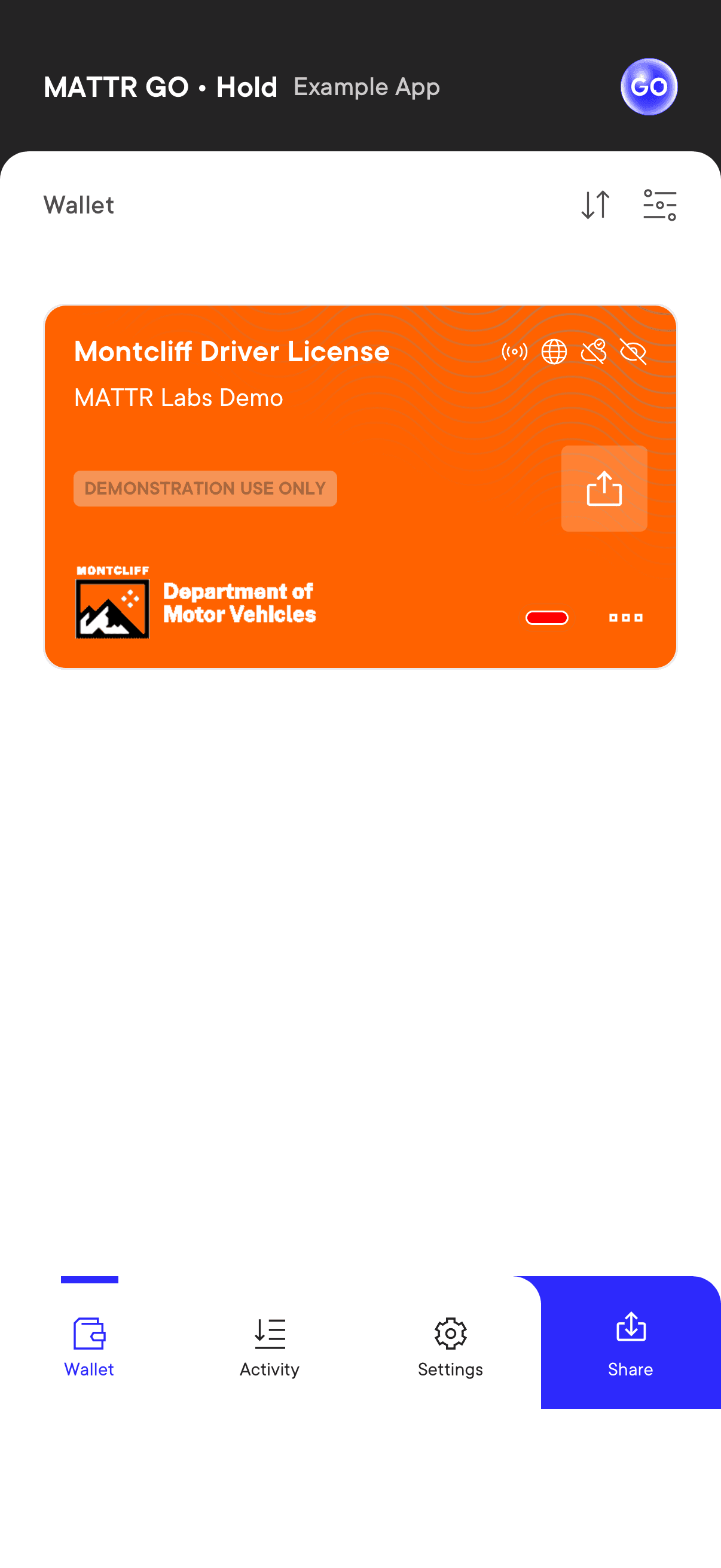
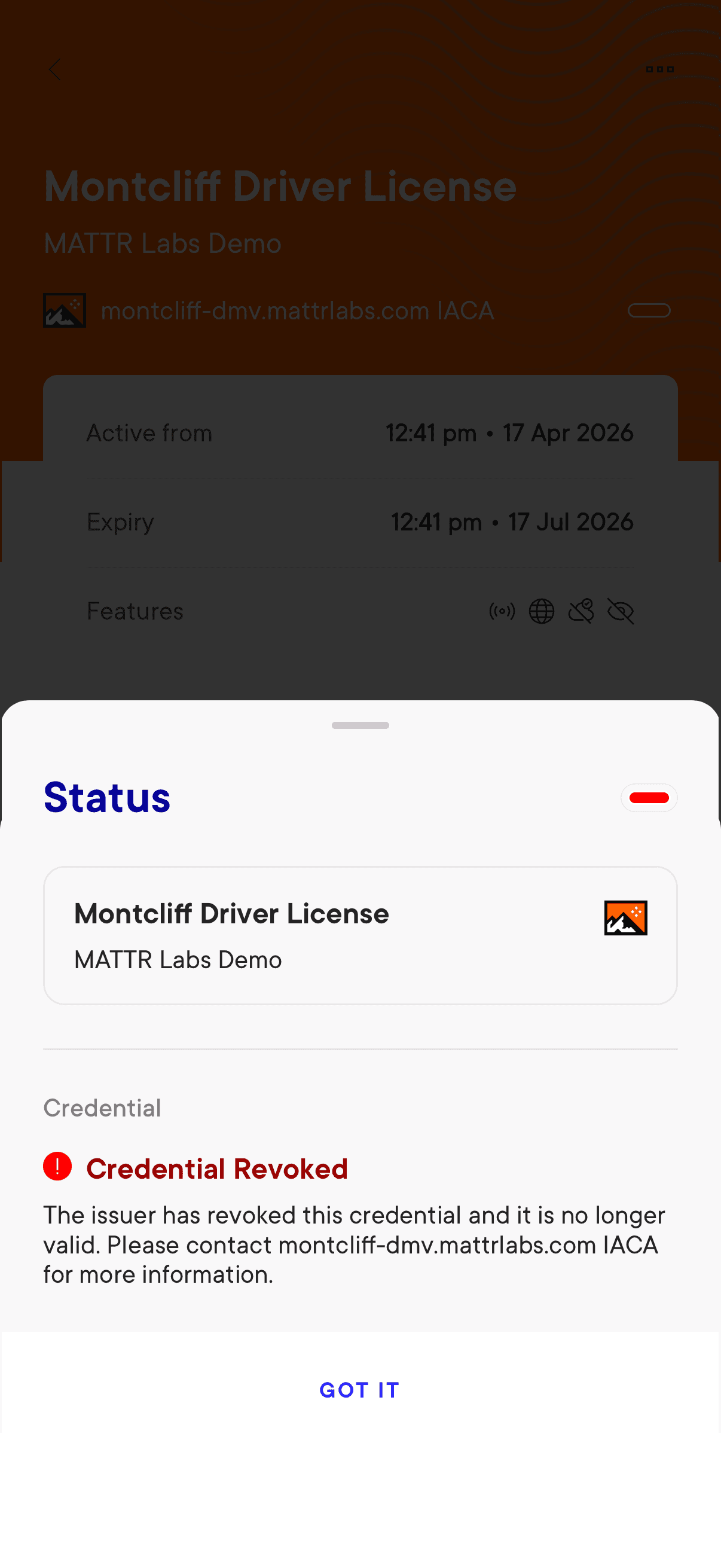
Once a credential is revoked, the holder's wallet should reflect the status change. The credential remains in the wallet but is marked as revoked or invalid, depending on the wallet implementation.
Here is an example of how a revoked credential might appear in MATTR GO Hold:
Verifiers
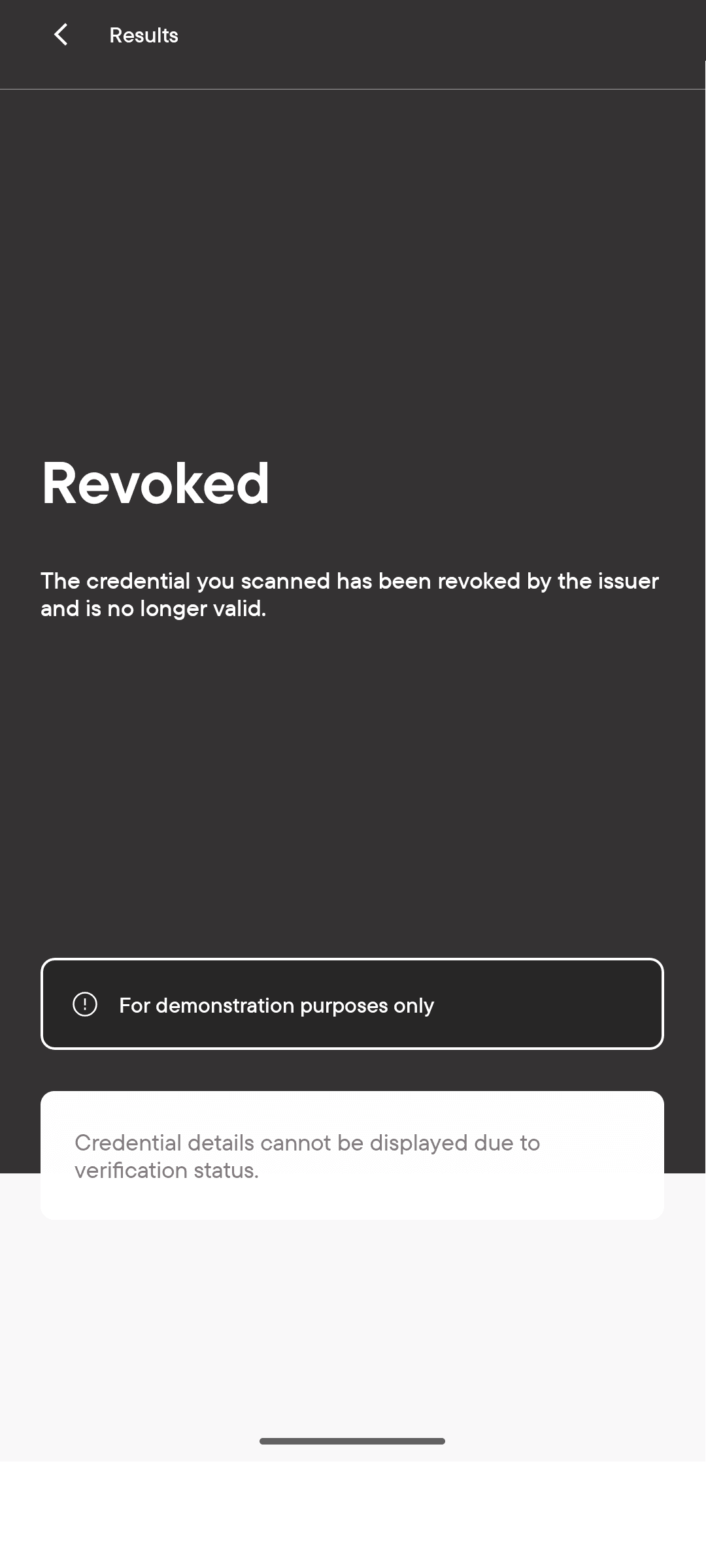
When a verifier attempts to verify a revoked credential, the verification process checks the credential's status against the status list. If the credential has been revoked:
- Verification fails.
- The verifier is informed that the credential has been revoked.
- Credential details (such as name, portrait, or address) can still be shown, depending on the verifier's implementation. MATTR Verifier SDKs will show the details but indicate the revoked status clearly. However, third-party verifiers that you do not control may choose to hide all credential details when a credential is revoked.
Here is an example of how a revoked credential might appear in MATTR GO Verify:
MATTR platforms check revocation status in a privacy-preserving manner by retrieving publicly available status lists that hold revocation information for multiple credentials. This means the issuer cannot determine which specific credentials are being checked by the verifier or for what purpose.
As mDocs revocation is an emerging standard, relying parties that have not implemented revocation checks might still assess a presented mDoc as valid, even when it has been revoked by the issuer.
Revocation propagation timing
When you revoke a credential, the status change is not immediately visible to all holders and
verifiers. The time it takes for revocation to propagate depends on the Status list configuration
for the credential's docType, specifically the timeToLiveDuration (TTL) and expiryDuration
(EXP) values.
- TTL (Time To Live): The recommended duration a relying party should cache a status list token before retrieving a new one. This is a guideline; relying parties should respect it but are not strictly enforced to do so.
- EXP (Expiry): The maximum duration a status list token remains valid. After this time, a relying party must retrieve a new token. They cannot use an expired token to check credential status.
The default values are:
| Setting | Default | Minimum | Maximum |
|---|---|---|---|
| TTL | 1 day | N/A | Cannot exceed EXP |
| EXP | 1 week | N/A | Cannot exceed the IACA validity |
How status list caching works
Status list tokens are cached to improve performance and enable offline verification. The following diagram illustrates how TTL and EXP affect the revocation propagation timeline:
Status list tokens are cached to improve performance and enable offline verification:
- You revoke a credential: The status list is updated immediately on your MATTR VII tenant. If the current status list token is cached, the cache is cleared and a new token is signed.
- Holder or verifier requests the status list: If they have a locally cached copy of the status list token, they use it until the TTL expires. Once the TTL expires, they retrieve a fresh token.
- Fresh token reflects the revocation: The newly retrieved status list token includes the updated status for the revoked credential.
Key points from the diagram:
- The TTL (Time To Live) determines when compliant wallets and verifiers should retrieve a fresh status list token. In this example, with a 1-day TTL, the revocation becomes visible when the wallet fetches a new token on Day 4 (24 hours after the previous fetch).
- If a wallet or verifier does not respect the TTL recommendation, they may continue using the cached token until it reaches its EXP (Expiry). In this example, with a 1-week EXP, the revocation would not be visible until Day 7 at the latest.
- MATTR SDKs respect TTL values, but you cannot guarantee the behavior of third-party wallets and verifiers that you do not control.
Balancing freshness and offline capability
Status list caching represents a deliberate trade-off between two important requirements:
Ensuring up-to-date credential status:
- Shorter TTL and EXP values mean wallets and verifiers fetch fresh status list tokens more frequently.
- This reduces the time between when you revoke a credential and when holders and verifiers see the updated status.
- However, it requires more network requests and means wallets and verifiers must be online more frequently to verify credentials.
Supporting offline verification:
- Longer TTL and EXP values enable wallets and verifiers to cache status list tokens for extended periods.
- This allows credential verification to continue in offline or low-connectivity environments without requiring constant network access.
- However, it increases the time between when you revoke a credential and when the revocation becomes visible to holders and verifiers who already have a cached token.
Choosing the right balance:
The optimal TTL and EXP values depend on your use case:
- High-security credentials (e.g., employee access badges, time-sensitive permits): Use shorter TTL/EXP values to ensure revocations propagate quickly. Accept that verification may fail in offline scenarios.
- Offline-first credentials (e.g., travel documents, educational certificates): Use longer TTL/EXP values to maximize offline verification capability. Accept that revocations may take longer to propagate.
- Balanced approach (default): TTL of 1 day and EXP of 1 week provides reasonable freshness while still supporting some offline verification scenarios.
If your verification workflows predominantly occur in controlled environments with reliable network connectivity (such as border control or workplace access), you can prioritize freshness with shorter TTL/EXP values. If your credentials are frequently verified in remote or low-connectivity environments (such as rural areas or international travel), prioritize offline capability with longer values.
Configuring TTL and EXP
You can adjust these values using a
Status list configuration.
Status list configurations are unique per docType per tenant.
When you update the status list configuration (e.g. change TTL from 24 hours to 2 hours), holders and verifiers who already have a cached token will continue using the old values until their cached token's TTL expires or the token reaches its EXP.
Currently, status list configurations can only be managed via the API:
POST /v2/credentials/mobile/status-lists/configurations{
"docType": "org.iso.18013.5.1.mDL",
"timeToLiveDuration": {
"hours": 2
},
"expiryDuration": {
"hours": 12
}
}To update an existing configuration:
PUT /v2/credentials/mobile/status-lists/configurations/{statusListConfigurationId}{
"timeToLiveDuration": {
"hours": 2
},
"expiryDuration": {
"hours": 12
}
}Propagation scenarios
The following scenarios illustrate how different TTL and EXP configurations affect when revocation becomes visible.
Scenario 1: Fast propagation
- TTL: 1 hour
- EXP: 6 hours
In this scenario, relying parties retrieve a fresh status list token at least every hour. If you revoke a credential, a compliant relying party will see the revocation within 1 hour or less. This is suitable when timely revocation is critical, but results in more frequent requests to your tenant's status list endpoint.
Scenario 2: Standard propagation (default)
- TTL: 1 day
- EXP: 1 week
Relying parties cache the status list token for up to 1 day before retrieving a new one. If you revoke a credential, it may take up to 24 hours for the revocation to propagate across all relying parties. Even if a relying party ignores the TTL, the token expires after 1 week, forcing a refresh.
Scenario 3: Offline-optimized
- TTL: 3 days
- EXP: 2 weeks
This configuration is suited for scenarios where verifiers operate frequently in offline environments and need to cache status list tokens for extended periods. The trade-off is that revocation may take up to 3 days to propagate under normal conditions.
Related resources
- Revocation overview: Conceptual overview of how revocation works for mDocs and CWT credentials.
- Revocation tutorial: Step-by-step walkthrough of issuing, checking, and revoking a credential.
- Users guide: How to manage user associations throughout the credential issuance lifecycle.
- Webhooks guide: How to configure and handle webhook events.
- mDocs status API reference: Update and retrieve mDocs revocation status.
- Status list configuration API reference: Manage status list TTL and EXP settings.
How would you rate this page?
Last updated on