
Learn how to configure an OID4VCI Pre-authorized Code flow to issue an mDoc into a digital wallet
Introduction
The OID4VCI specification is an open standard developed by the OpenID Foundation. It leverages the OpenID protocol to support verifiable credentials issuance and management.
In this tutorial we will configure an OID4VCI Pre-authorized Code flow and use it to issue an mDoc into a MATTR GO Hold example app, showing each step both through the MATTR Portal and via the equivalent API calls.
User experience
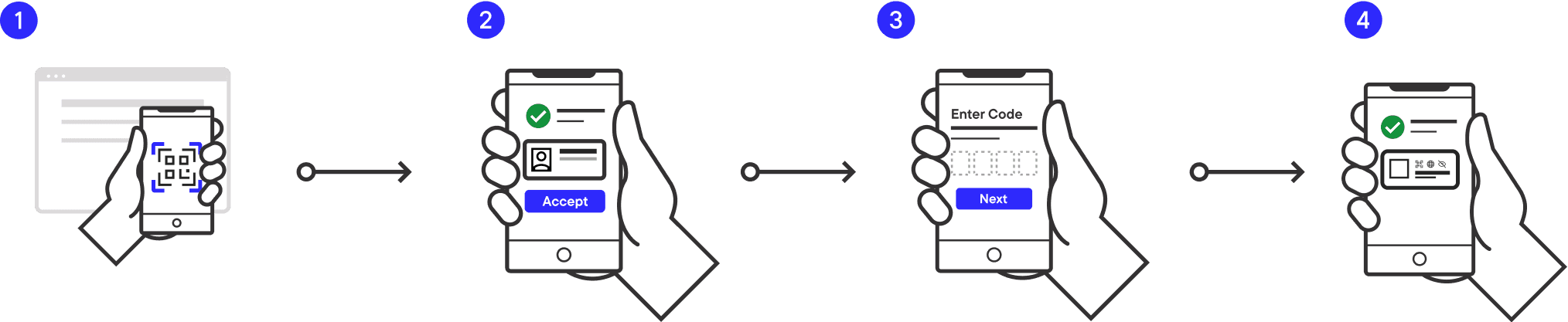
This is the user experience you will build in this tutorial:
- The user launches their GO Hold example app and scans a QR code received from an issuer.
- The GO Hold example app displays what credential is being offered and by what issuer.
- Once the user accepts the offer, they are required to provide a transaction code. This code is provided to the user by the issuer through a different channel (e.g. email, SMS, printed on paper).
- Once the transaction code is provided, the credential is immediately issued to the user's GO Hold example app. They can now view the credential and present it for verification.
UX considerations
- No prior authentication required: Users are not required to authenticate before the credential is issued. This simplifies the process but assumes the issuer has already verified the user prior to providing the credential offer (e.g., during login to a wallet application or service portal).
- Implicit credential acceptance: The user is not technically required to explicitly accept the credential offer. Depending on how the flow is implemented with wallet providers, the credential can be issued immediately upon scanning the QR code.
- Optional transaction code: The use of a transaction code is optional and can be omitted if not required by the issuer. In this tutorial, we include it to demonstrate how an additional layer of security can be added to the issuance workflow.
Prerequisites
- Complete the sign up form to get trial access to MATTR VII and the MATTR Portal, and then Create a tenant.
- Install the MATTR GO Hold example app by following the getting started guide.
We recommend using the MATTR VII Postman collection in this tutorial. While this isn't an explicit prerequisite it can really speed things up.
Tutorial overview
To build this user experience, the current tutorial comprises the following steps:
- Create Issuer certificates: Required to sign mDocs.
- Create an mDocs credentials configuration: Controls the content and branding of issued Credentials.
- Create and share a Credential offer: Used by digital wallets to trigger the issuance workflow.
- Claim the credential as the holder: Use your GO Hold example app to claim the offered Credential.
Tutorial steps
Create issuer certificates
In this tutorial you are going to issue an mDoc, so you need to have valid IACA.
- Log into the MATTR Portal.
- In the navigation panel on the left-hand side, expand the Platform Management menu.
- Select Certificates.
- Select the Create new button.
- Use the Type radio button to select IACA - Issuing Authority Certificate Authority.
- Use the Management method radio button to select MATTR managed.
- Use the Country dropdown list to select an issuing country.
- Select the Create button to create the IACA certificate.
The IACA is created as inactive by default. - Use the Status radio button to select Active.
- Select the Update button to activate the IACA certificate.
Create a MATTR VII mDocs credential configuration
-
In the navigation panel on the left-hand side, expand the Credential Issuance menu.
-
Select mDocs.
-
Select the Create new button.
-
In the Name text box, enter a clear and descriptive title that will appear on the credential in the wallet, for example "My First Pre-Auth Credential".
-
In the Description text box, enter a clear and descriptive description that will appear on the credential in the wallet, for example "For High Assurance Interactions".
-
In the Credential type text box, enter a unique identifier for the credential type, for example
com.example.myfirstpreauthcredential. -
Copy and paste the following JSON into the Claim mappings text box:
Claim mappings { "com.example.personaldetails.1": { "name": { "mapFrom": "claims.name", "type": "string" }, "email": { "mapFrom": "claims.email", "type": "string" } } } -
Use the Include status dropdown list to select Enable. This will enable support for changing the revocation status of the issued credentials.
-
Enter "1" in the Months text box in the Validity for panel to set the credential expiration period.
-
Select the Create button to create the credential configuration.
The branding values you set here are written into each credential issued from this configuration,
so they are available to the holder offline and travel with the credential when it is presented.
Branding is carried in a custom _branding extension element that is not standardized, so holder
applications need to be built to read it. MATTR SDKs and MATTR GO handle this out of the box.
Refer to
How branding reaches the holder
for more information.
Create a Credential offer
You now have all the pieces in place and can wrap them all together to generate a Credential offer and share it with the intended holder so that they know what credentials are being offered and by whom.
Creating pre-authorized code flow credential offers in the MATTR Portal is for testing purposes only. The populated user ID is generated by the MATTR Portal and cannot be changed to another user later.
- In the navigation panel on the left-hand side, expand the Credential Issuance menu.
- Select Credential offer.
- Use the Workflow radio button to select Pre-authorized code flow.
- Select the Select button.
- Check the checkbox next to the credential configuration you created in the previous step.
- Select the Apply button.
- In the Claims panel, click the Add new button and add the following claims:
- Attribute:
name, Type:String, Value:John Doe - Attribute:
email, Type:String, Value:john.doe@example.com
This is an example for demonstration purposes only. In production deployments, these claims would typically be populated dynamically from a data source or provided programmatically when creating the credential offer.
- Attribute:
- Select the Generate button.
- Copy the Transaction code that is displayed on the screen.
In production deployments you will need to provide it to the user through a different channel (e.g., email, SMS). - Download the displayed QR code.
This QR code will be used by the holder to claim the credential.
Use the MATTR GO Hold example app to claim the credential
- Open the GO hold example app.
- Select Scan.
- Scan the QR code generated in the previous step.
- Review the credential offer and select Accept.
- Provide the transaction code provided when you created the credential offer.
- Follow the on-screen instructions to claim the credential.
Congratulations, you just configured an end-to-end OID4VCI Pre-authorized Code flow to issue an mDoc into a digital wallet!!!
What's next?
In this tutorial we have configured a basic OID4VCI Pre-authorized Code flow. However, you can use MATTR VII to create more complex and rich issuance experience. Check out more resources on MATTR Learn that will enable you to:
- Experiment with a different issuance flow by completing the OID4VCI Authorization Code flow tutorial.
- Configure a Claims source to retrieve data from compatible data sources and use it in the issued credential.
- Apply branding to issued credentials as part of creating a Credential configuration.
How would you rate this page?
Last updated on